Relocating IEDs
Motivation
Relocating from one IEM (Source IEM) to another (Destination IEM) with onboarded IEDs can result in either IEDs to be reonboarded and set up again, or IEDs having to be relocated. With the later, IEDs are transfered to the Destination IEM without losing installed applications and configurations.
Prerequisites
- Edge Devices names must not be duplicated on the Destination IEM.
- Source IEM and Destination IEM must not be the same.
- Source IEM and Destination IEM must be reachable by the Edge Device during the relocation.
- Edge Device must be compatible with the relocation feature, preferred version IED-OS 1.12.X and IEDK 1.12.0-2 or above.
- The owner of the device has to initiate the export of the device.
- The Device type must be the same for both IEMs.
- The versions and App IDs of the applications installed on the edge device at the Source IEM must be available at the Destination IEM.
-
App IDmust be identical.Note If the app version is not available anymore, update to the latest app version of the same IE Hub environment before performing a relocation of the IED. It is not sufficient to only ensure an identical app version but an identical app id is required. This can be fullfilled by building the app on the same version on the same IE Hub environment. Different environments cause a difference in app ids that are not reflected in the version.
Procedure
-
Navigate to the "Edge Devices" tab inside the IEM.
-
Click on "System Commands".
-
Select the option "Migrate". 3 commands are listed.
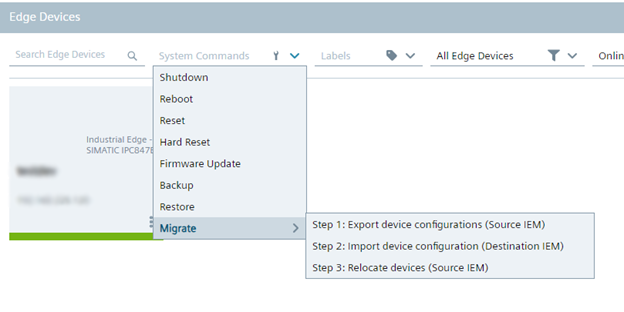
- Step 1: Export device configuration (Source IEM)
- Step 2: Import device configuration (Destination IEM)
- Step 3: Relocate devices (Source IEM)
-
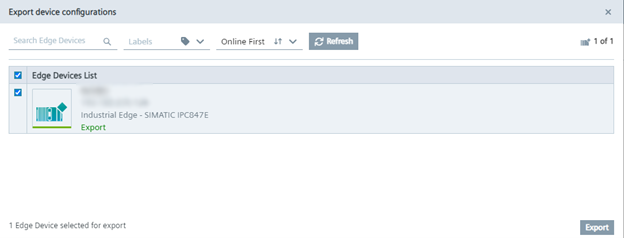
Click on "Step 1: Export device configuration (Source IEM)" in the Source IEM The "Export device configurations" screen appears.
-
Select the Edge Device you want to relocate and click "Export". The configuration file "device-info.zip" is downloaded.
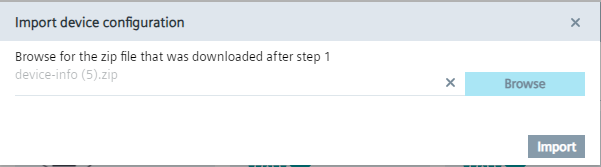
Note The exported zip file must be saved in a secured location. 6. Click on "Step 2: Import device configuration (Destination IEM) in the Destination IEM. The "Import device configurations" screen appears.
-
Click "Browse" and select the configuration file downloaded in step 5.
-
Click on the "Import" button. The "relocation-info.json" file is downloaded.
-
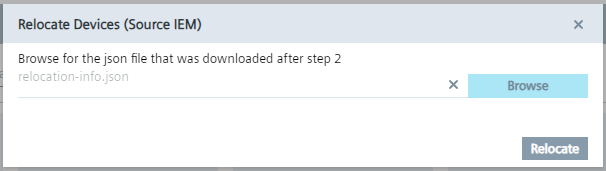
Click on "Step 3: Relocate devices (Source IEM)" in the Source IEM. The "Relocate Devices (Source IEM)" screen appears.
-
Click "Browse"and select the "relocation-info.json" file downloaded in step 8.
-
Click "Relocate". The relocation process starts and the "Relocate Devices (Source IEM)" screen appears.
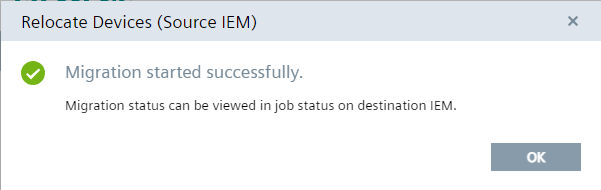
Note Applying any changes after creating the zip file in step 5, such as installing or uninstalling applications on the IED, will result in inconsistent behavior and potential failure of the relocation.
Restrictions
- NTP server: NTP details will stay the same after IED relocation. The user must verify and reconfigure the NTP server configuration after the relocation. This is especially true for the IEM Pro as a Destination IEM, as it does not have a built-in NTP server.
- User and roles:
- IEM users are not migrated during the IED relocation.
- If users are configured in the Source IEM the user logged into the Destination IEM while relocation will become new owner of relocated IED. IED users remain the same in the Source IEM and work after relocation.
- App Projects and catalog:
- User on the Destination IEM must have access to the installed apps.
- This applies to both, catalog applications and application projects.
- License transfers:
- IEDs must be manually removed from the Source IEM and afterwards the license report needs to be submitted.
- In case either Source IEM or Destination are of type IEM ISO the licenses report needs to manually send after the relocation. This can be performed on the Admin Management panel of the IEM, so the licenses are updated on the IEH account.
- Device statistics, logs and backups are not migrated as they're stored on the IEM not on the IED.
- IED relocation will also work on low bandwith of around 50kbps. All steps performed successfully. However other activities, such as remote access might not work at this low bandwidth but will again work after setting back to e.g. original 250kbps.
- The device type needs to be present on the Destination IEM prior to IED relocation. If it's not available a default device type will be used causing IED relocation to run through successfully. The device id will then be shown as a device name. However follow-up IED activities, such as firmware upgrade might not work. Ensure identical device type before relocating.
Known Issues
- Relocation job on Source IEM will remain in execution or pending if it does not execute successfully, without the ability to delete it.
- In between operation (App Update, Device Update, Soft Reset, Install App, Update Config, Uninstall Factory Reset) while the export is in progress may cause unknown inconsistencies.
- Backward compatibility: You can upgrade from IEM 1.14.10 to IEM 1.15.10, but you cannot downgrade for this specific version.
- Any changes to the device application structure after creating an export zip will result in inconsistent behavior (e.g., installing or uninstalling a new application on the IED after creating an export zip).
- After successfully relocating an IED, the Source IEM will not delete that IED. It needs to be deleted manually due to licencing reasons. The user must do this manually.
- Export is possible for both enabled and non-enabled devices, Relocation Job at Target IEM is created only for enabled devices and only these devices are added to the Relocation File.
- Do not import Devices in parallel.
- If IE Flow Creator runtime app is installed on the IED before the relocation with flows configured, nodes might show and remain in a not connected or connecting state.
Selected Scenarios explicitly tested
- Using IED relcoation as a rollback strategy is not the designed way and not best practise. However if prerequisits for IED relocation are met, also with respect to IEM version, than another IED relocation ("rollback") is possible. This should not be considered as a backup mechanism.
- In case of connection loss during the relocation depending on already performed process steps of the IED relocation the IED will either remain onboarded on the Source IEM or will be onboarded to the Destination IEM. The IED will enter a stable state.
- Relocation of IEDs with an identical name on two different Source IEMs will result in one IED to be migrated successfully to the Destination IEM and the other one failing.
- Best practise prio to performing an IED relocation is to upgrade apps to the latest available version and consequently providing the same latest app version on the Destination IEM to meet pre-requisits of identical app ids.
- Proxies configured on the IED will also work after IED relocation. Afterwards a reconfiguration might be required depending on the new setup of the Destination IEM.
- IED relocation on different states of IEM such as "eco prod" to "prod" is not best practise but will be executed successfully.
- Configurations on the Source IEM will not be migrated to the Destination IEM. Nevertheless, the IED relocation will be performed successfully. However, a reconfiguration might be necessary. This applies to components such as NTP server, metrics agent, relay server, etc...
- Apps running on an IED using layer 2 will also be migrated successfully.