Data Points
This tab allows you to view all data points, and select data points from the configured data sources.
User can enable/disable Historical Data Access from Historize column. For more details refer Historical Data Access for Data Points
All data points from the configured data sources are displayed as follows:
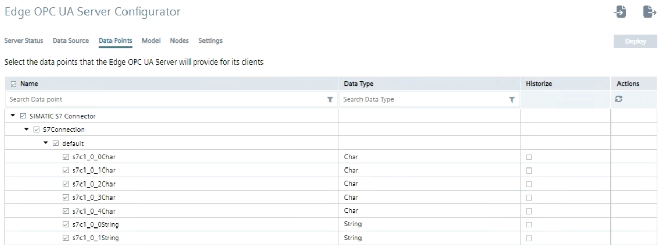
Note In case no data points are available/displayed then this message will appear. " Please connect at least one data source with valid meta data topic by clicking
in Data Source tab to get the available data points".
You must select atleast one data point to "Deploy". If no data points are selected, the error message is displayed as "  At least select one data point".
Search and Filter Option for Data Points
Following are the steps to perform search and filter options:
-
Navigate to data points page by selecting "Data Points" tab.
-
Enter a keyword in the "Search Bar" available in the "Name" column. (This keyword will be matched with Source name, Group name and Data Tag name and then filtered data will be displayed)
-
To filter the Data Points based on the Data Types, enter a keyword in the "Search Bar" available in the "Data Types" column.
Note- The search/filter works on the principle of cross product, which means the data will be filtered based on the values in both (Name and Data Type) columns.
- The order of Step 2 and Step 3 is interchangeable and hence the result will be the same.
- The search/filter keywords are case insensitive.