Proxy Settings
Proxy network
When you click the "Proxy Network" tile, you open the proxy settings of the Edge Device.
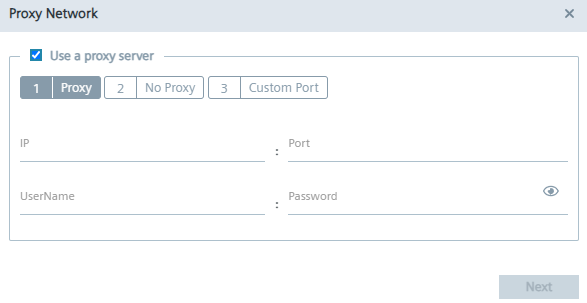
You configure the following proxy settings:
-
Proxy
-
No proxy
-
Custom port
After you have configured the proxy settings, you save the proxy settings by clicking "Configure".
Proxy
In the "Proxy" tab, you activate, if needed, the use of a proxy server and configure the proxy server.
To configure the proxy server, proceed as follows:
In case of an additional authentication for the proxy server, enter user name and the corresponding password in the according input fields. When authentication is required, the proxy password must match the following criteria:
- To use a proxy server, click the "Use a proxy server" check box. The input fields for the proxy server are enabled.
- Enter the IP address and the corresponding port of the proxy server in the according input fields.
- In case of an additional authentication for the proxy server, enter user name and the corresponding password in the according input fields.
- The password must start with an alphabetic character
- The password must not contain complex characters, such as \ . * "
- The password must not be longer than 21 characters