Creating Password Policy
A password policy is a set of rules and restrictions that must be followed when setting a password to ensure that the password is strong.
Prerequisites
- User with access to IAM (a.k.a. Keycloak)
To create a password policy, proceed as follows:
-
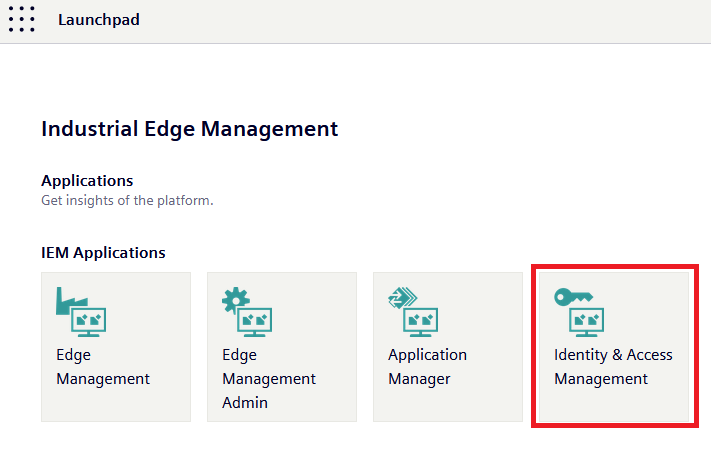
Login to Identity & Access Management tile in the launchpad.
-
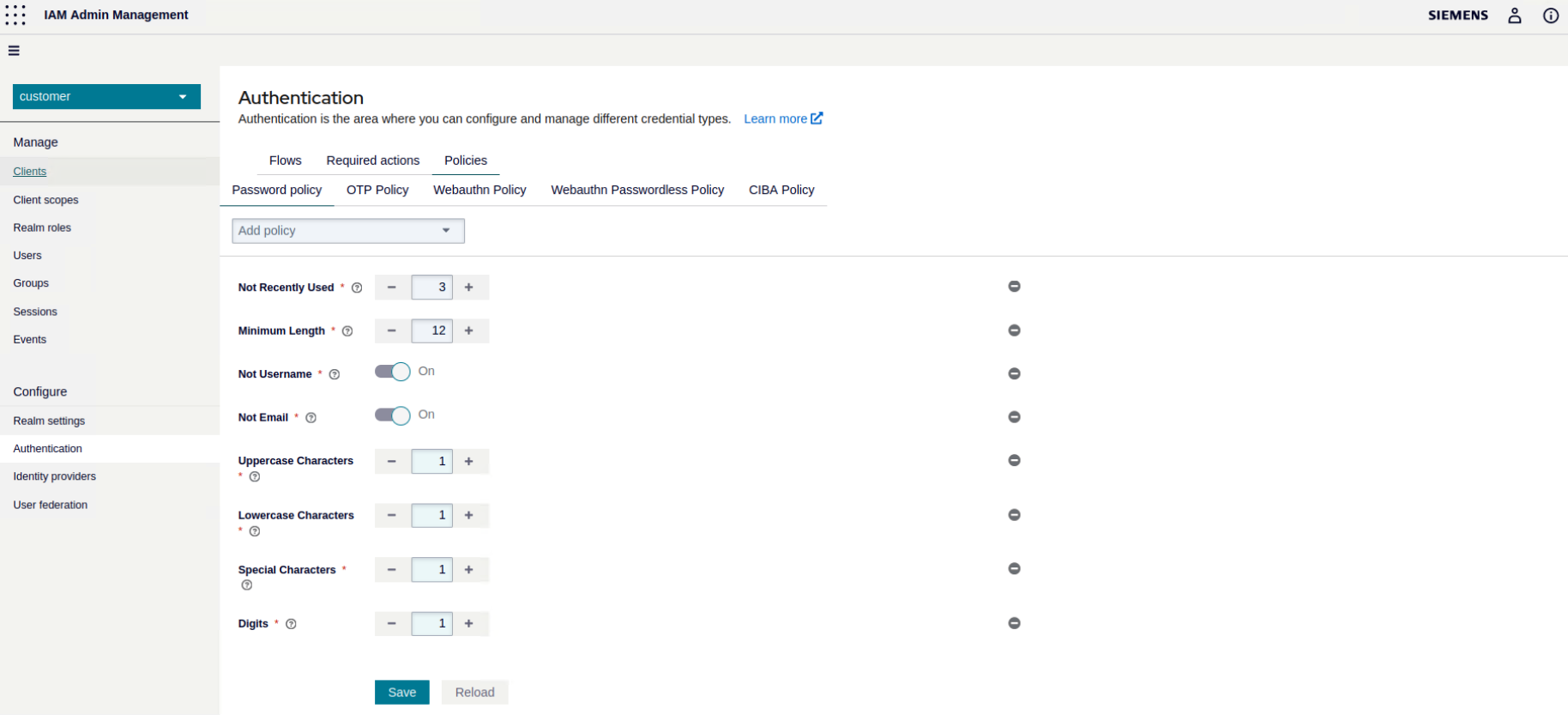
In the navigation menu, click on Authentication.
-
Navigate to the Policies tab.
-
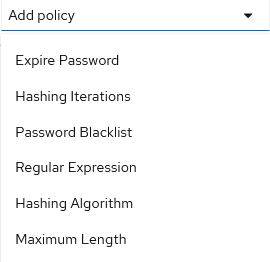
From the Add policy drop-down list, add the policy types you want to use.
There are several password policy types. You find all available policy types here.
-
Create your password policy by adding your required policy types and corresponding policy values.
-
Click
Savewhen you are done.After saving the password policy, Keycloak enforces the policy for new users. For existing users, Keycloak sets an update password action to ensure existing users change their password the next time they log in.
Special characters
The number of special characters required to be in the password string can be defined in password policy.
Initial Actions User
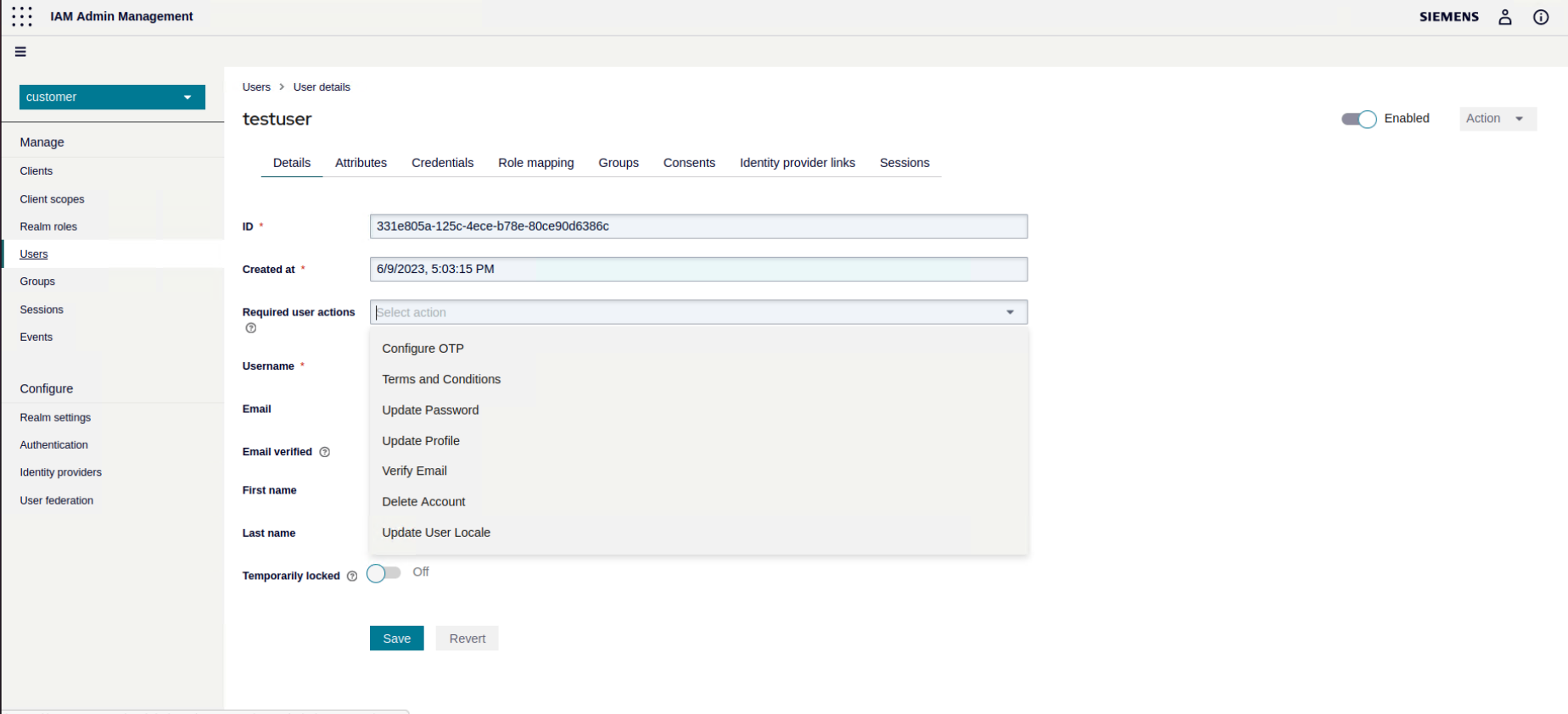
Required actions are actions a user must perform during the authentication process. A user will not be able to complete the authentication process until these actions are complete. For example, an admin may schedule users to reset their passwords every month. An update password required action would be set for all these users.
Sign Up Process - How to register yourself as user
Register yourself
You can allow users to register themselves.
Once logged-in select the Identity & Access Management tile in the launchpad.
Go to Realm Settings and select the tab Login.
There you can enable User registration.
Now a user can register themselve by clicking on the Sign up link on the login page.
The user has to fill in the form and choose a password.
The user needs either one role - User or Admin to access IEM.