Settings
This tab help you in configuring the settings related to Security, User Management and Historical Access. More infomation related to the settings has been illustrated below.
Security
This tab comes under 'Security Tab. It allows you to specify the security settings for the server. You can specify security policies and certificates as required as follows:
Note- You can use CA authorised certificate or generate self signed certificate also for the secured connections.
- Edge OPC UA server app supports only.derbinary certificate and unprotected.pemprivate key for the secured communication.
User Management
This tab allows you to add a user for server. All existing users are displayed as follows:
The following table lists the different UI elements in the "User Management" tab page:
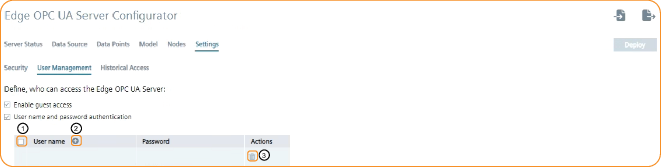
| UI Element | Description |
|---|---|
| ① Global Check Box | Using this check box, you can select all users. |
| ② Add User Icon | Using this icon, you can add a user. |
| ③ Global Delete Icon | Using this icon, you can delete all selected users. |
For more details refer User Management .
Note The guest access should be disabled when users with passwords are used for a secure setup.
Historical Access
This tab allows you to select the time duration for which you want to store the data historically. According to the selected time duration data will be stored in IED.
Example: a user has selected time duration as 5 minutes, then the last 5 minutes data will be stored in IED. User can view the historical data in OPC UA client application. For more deatils on Historical Data Access
Deploy Button
Deploys the configuration from each tab to the Edge OPC UA Server on Industrial Edge Device. Each tab displays its respective status, and in case of issues "Message" section in "Server" status tab can be referred for detailed information.