Sign up
Requirement
You have received an invitation code to sign up to the Maintenance UI.
Procedure
-
Open the Maintenance UI by entering the IP address respectively domain of the Maintenance UI in the HTTPS protocol into an Internet browser.
-
Accept the privacy warning and proceed to the
Sign inscreen.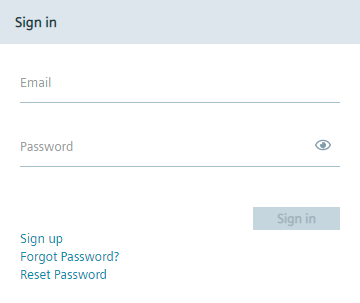
-
Click
Sign up. TheSign upscreen is displayed.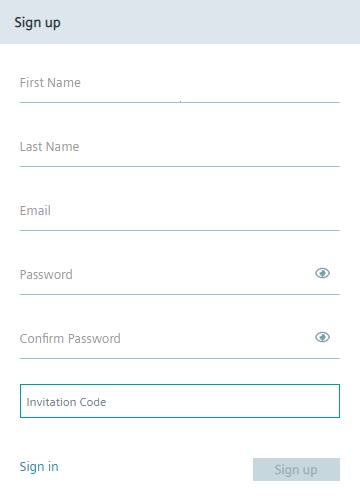
-
Enter the required information. In the
Invitation codeinput field, enter the received invitation code. The password must meet the following criteria:- At least 8 characters
- At least 1 upper case letter
- At least 1 special character
- At least 1 number
The following characters are recognized as special characters: ! @ # $ % ^ & * . ( ) _ +
-
Click
Sign Up. If the invitation code is valid and correct, you will be redirected to theSign inscreen. The admin of the IEM OS must now approve your request. -
Contact the admin of the IEM OS for approval of your user account.
- Wait until the admin has approved your user account. The approval takes some time. After the admin has approved your user account, you successfully signed up to the Maintenance UI. The admin must now contact you and inform you that you are able to log into the Maintenance UI.