In the Configuration tab you configure alerts and timer settings
Edge Management Timers
When you click the Edge Management Timers tile, the Edge Management Timers screen is displayed:
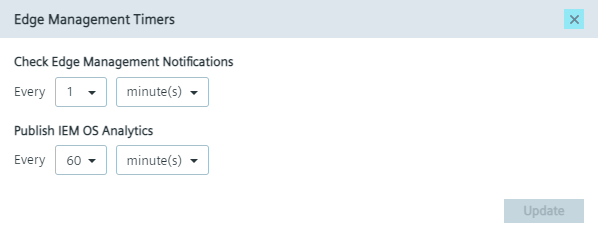
In this screen, you set the time period for the following parameters:
-
Check Edge Management Notifications: Time period of retrieving jobs from the IEM. By default, the IEM OS retrieves jobs every minute. Minimum value is 10 seconds and maximum value is 30 minutes.
-
Publish IEM OS Analytics: Time Period of sending statistics of the IEM OS to the IEM. By default, the IEM OS sends its statistics every 60 minutes to the IEM. Minimum value is 10 seconds and maximum value is 60 minutes.
To save the changes, click Update.
IEM OS Timers
When you click the IEM OS Timers tile, the IEM OS Timers screen is displayed:
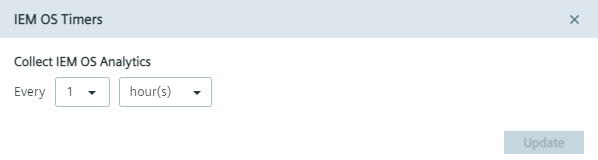
In this screen, you set the time period of updating the IEM OS statistics. By default, the IEM OS updates every hour its statistics. Minimum value is 1 minute and maximum value is 23 hours.
To save the changes, click Update.
IEM OS Alerts
When you click the IEM OS Alerts tile, the IEM OS Alerts screen is displayed:
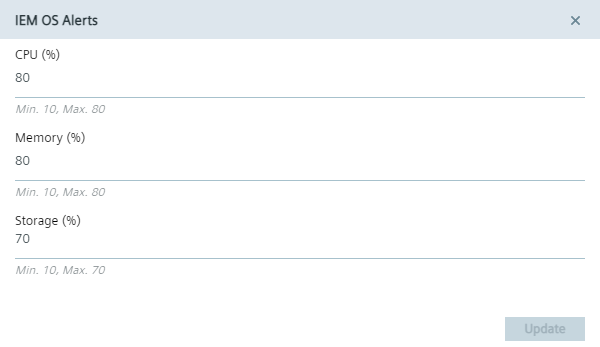
In this screen, you configure alert thresholds for the IEM OS. You configure the following utilization thresholds:
- CPU
- Memory
- Storage
Whenever 1 of these resources exceeds its utilization threshold, a warning icon is displayed in the header of the Maintenance UI and its message is displayed via tooltip.

In that case, either expand the utilization threshold or decrease the utilization itself. To save the changes, click Update
Timeout
Installed apps on the IEM OS that are subscribed to the event service, that you have activated during the creation of the app in the IE App Publisher, receive a notification when you perform a system event, for example an IEM OS shutdown or reboot.
When you click the Timeout Settings tile, the System Commands Timeout Settings screen is displayed:
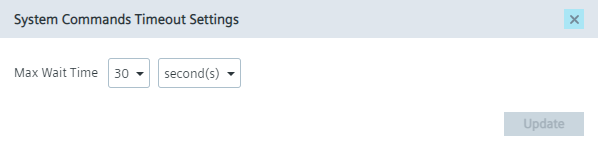
In this screen, you set the maximum waiting time for these apps to acknowledge the triggered system event.
After the set time has passed, the system event will be performed.
By default, the maximum time is 5 minutes.
Minimum value is 1 minute and maximum value is 60 minutes.
To save the changes, click Update.
If the IEM OS does not get an acknowledgement from the app, the IEM OS performs the system event anyways. In that case, app data may be lost.
NTP Health Status Timers
When you click the NTP Health Status Timers tile, the `NTP Health Status Timers screen is displayed:
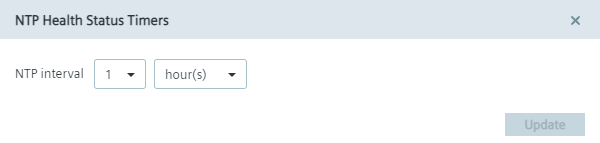
In this screen you set the monitoring interval in which the IEM OS checks the NTP server status.
By default, the interval is set to 1 hour.
Maximum interval is 1 day and minimum interval is 1 minute.
To save the changes, click Update.
Any changes of the NTP server status will be displayed in the Recent Events screen.