Download Log files
Log files are essential, because they provide valuable insight into system performance and help identify potential problems. By enabling users to download these files, they can analyze system behavior, communicate with customer support, and share critical information with research and development teams when errors occur. This empowers users to take proactive steps to troubleshoot and maintain optimal system performance, while fostering an effective feedback loop with support and development teams, ultimately improving the overall user experience.
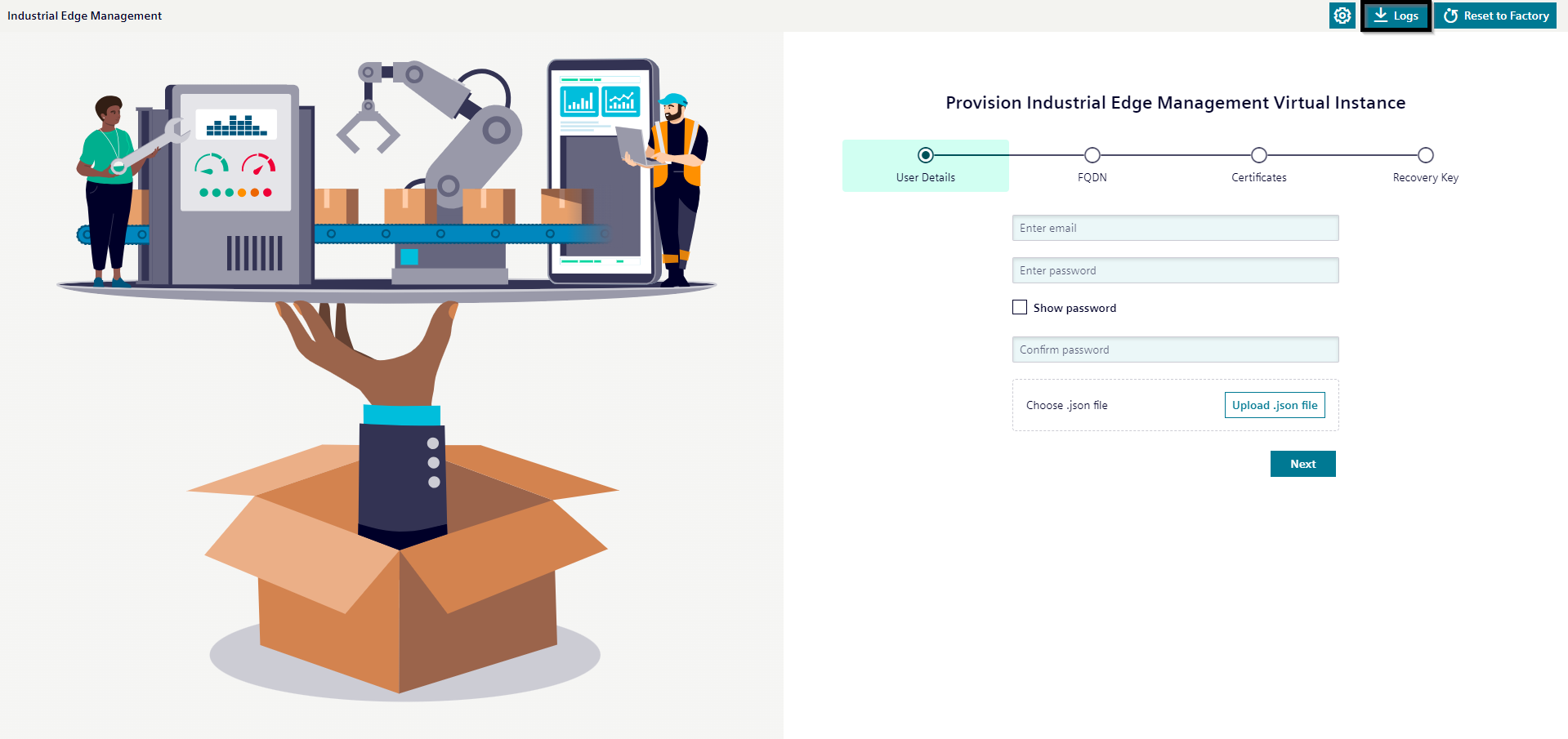
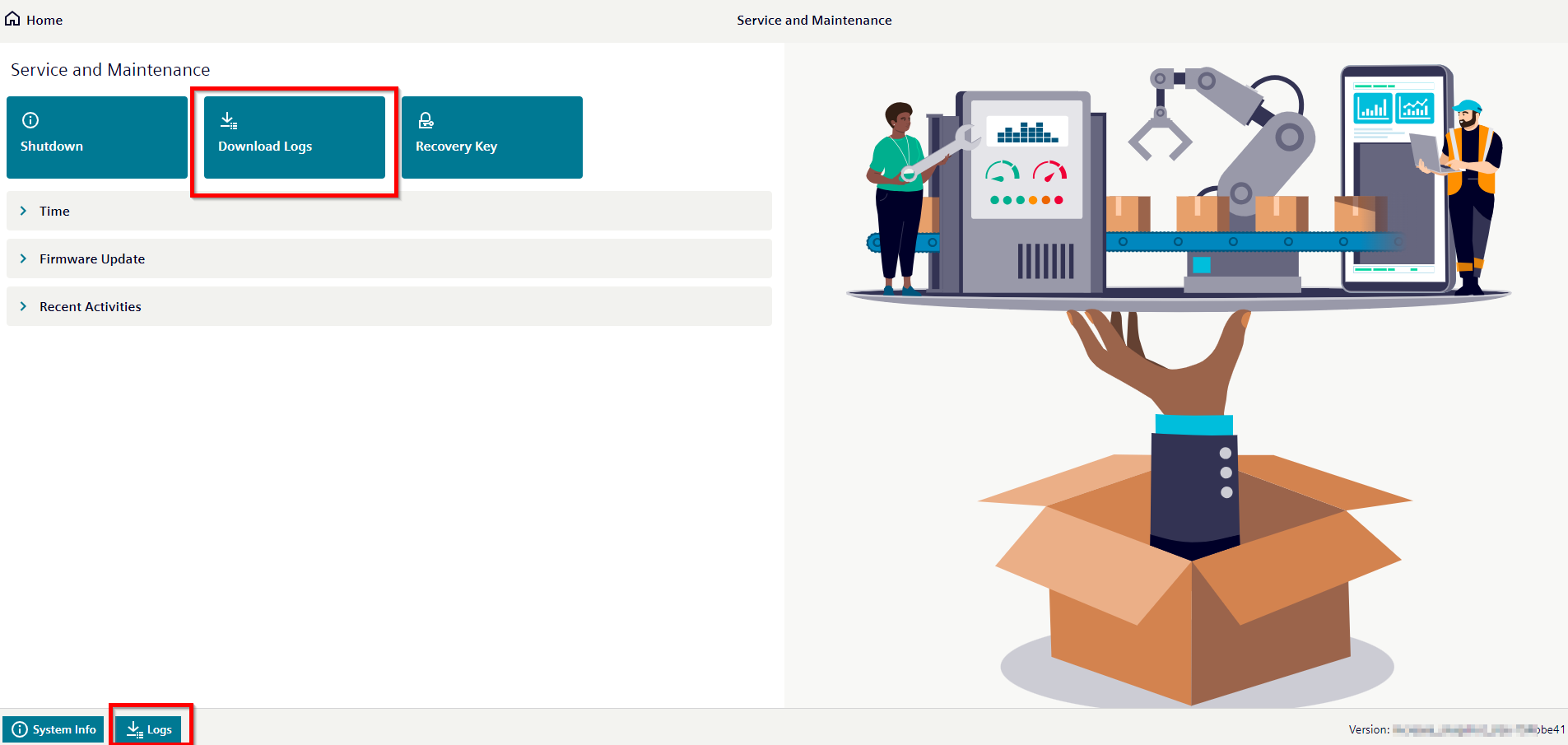
The log file download is available in the First Boot Wizard to analyze boot and installation errors, as well as in the Service and Maintenance UI to analyze problems with the underlying K3s cluster or other system components.
Procedure
Download Logs from the First Boot Wizard
-
Open the First Boot Wizard to start the provisioning process.
-
Configure the network and proxy as needed.
-
Start the provision.
-
In case the provisioning is not successful, you can download the logs from the UI using the
Download Logsicon.
Note
Download Logsis not available if the IEM is provisioned successfully. The logs can be downloaded through the Service & Maintenance UI.
Download Logs from Service & Maintenance UI
-
Open the IEM App and log in with your credentials.
-
In the Launchpad, click the Service and Maintenance tile. The Service and Maintenance Applet opens.
-
Download logs by clicking the Download Logs button in the Settings panel or from the footer.
Log file & content
The downloaded log file is a compressed file with a .tar.gz extension. You can extract the file to get the directory structure as shown below.
logfiles_<random no>.tar.gz

log/
    system/
        system.log
        swupdate.log
        k3s.log
        iemaab-api.log
        nginx.log
    pods/
        pod1/
            pod.log
        pod2/
            pod.log
        ...
        ...
        ...