Resource Manager
The Resource Manager tab provides an overview of all enabled resources including their status and allows to configure them.
Introduction
Industrial Edge supports applications to request and access underlying IED resources such as CPU cores or network interfaces for use cases which require certain assured availability of these resources. The same mechanism is used to manage access to dedicated hardware such as GPUs. Generally speaking, each resource class may subsume multiple resource instances representing individual CPU cores, network interfaces, GPUs or the like.
Industrial Edge's Resource Manager takes care of the following tasks:
- Assign resource instances to apps at startup depending on their demands.
- Ensure that instances in use are not utilized by other apps in the system.
- Display for each instance its availability as well as health status.
- Releases claimed instances when apps are stopped.
More information can be found in the resource manager documentation for device builders and app developers.
Resource Classes
CPU Cores
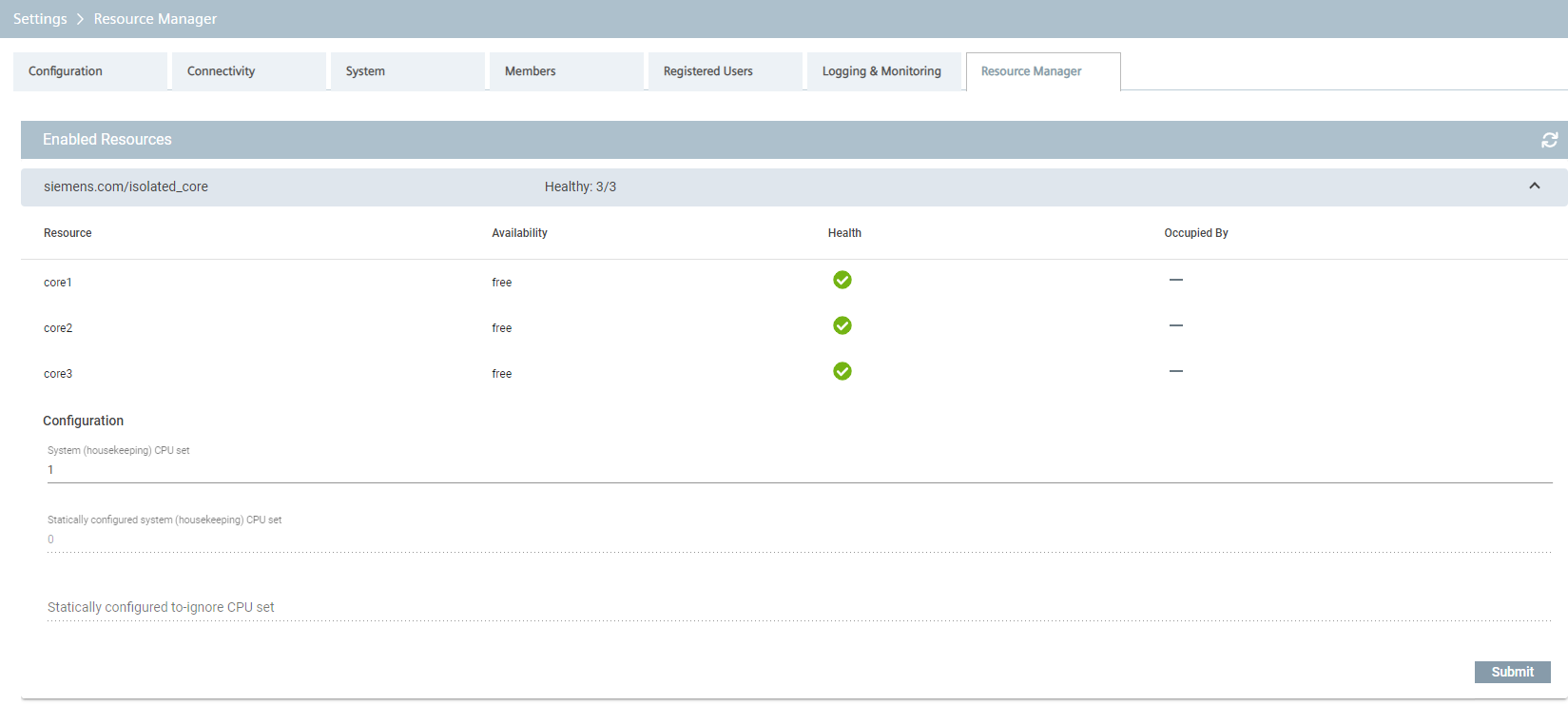
Industrial Edge apps can claim selected CPU cores for exclusive use. Having such isolated CPU cores is typically required by real-time applications to avoid (temporal) interferences with other processes. The screenshot below shows a system with four CPU cores, where one core is reserved for housekeeping tasks. Two of the remaining cores are already occupied by an app, leaving one core, which is still claimable.
Configuration
To always leave certain CPU cores—in the following simply referred to as CPUs according to Linux conventions—for general-purpose tasks, they can be excluded from the set of isolatable CPUs.
This is accomplished using the field "System (housekeeping) CPU set" in the configuration section, which takes as input a comma-separated list of integers or ranges, e.g., 0,2-4.
The other two fields are defined by device builders, and their values cannot be changed via the UI:
- The statically configured system (housekeeping) CPU set is merged with the corresponding user-defined value. They are, however, used to run Industrial Edge apps that don't require isolation.
- The statically configured to-ignore CPUs are not touched by Industrial Edge altogether.
Note Changing the configuration requires a system reboot, as the CPU isolation services depend on these values.

Network Interfaces
Similar to CPU core isolation, network interfaces can be claimed by applications for exclusive use. This way, applications can implement real-time capable network stacks like Profinet or get access to a PTP clock associated with a network interface. Network interface isolation can be configured in the Industrial Edge Resource Management user interface.
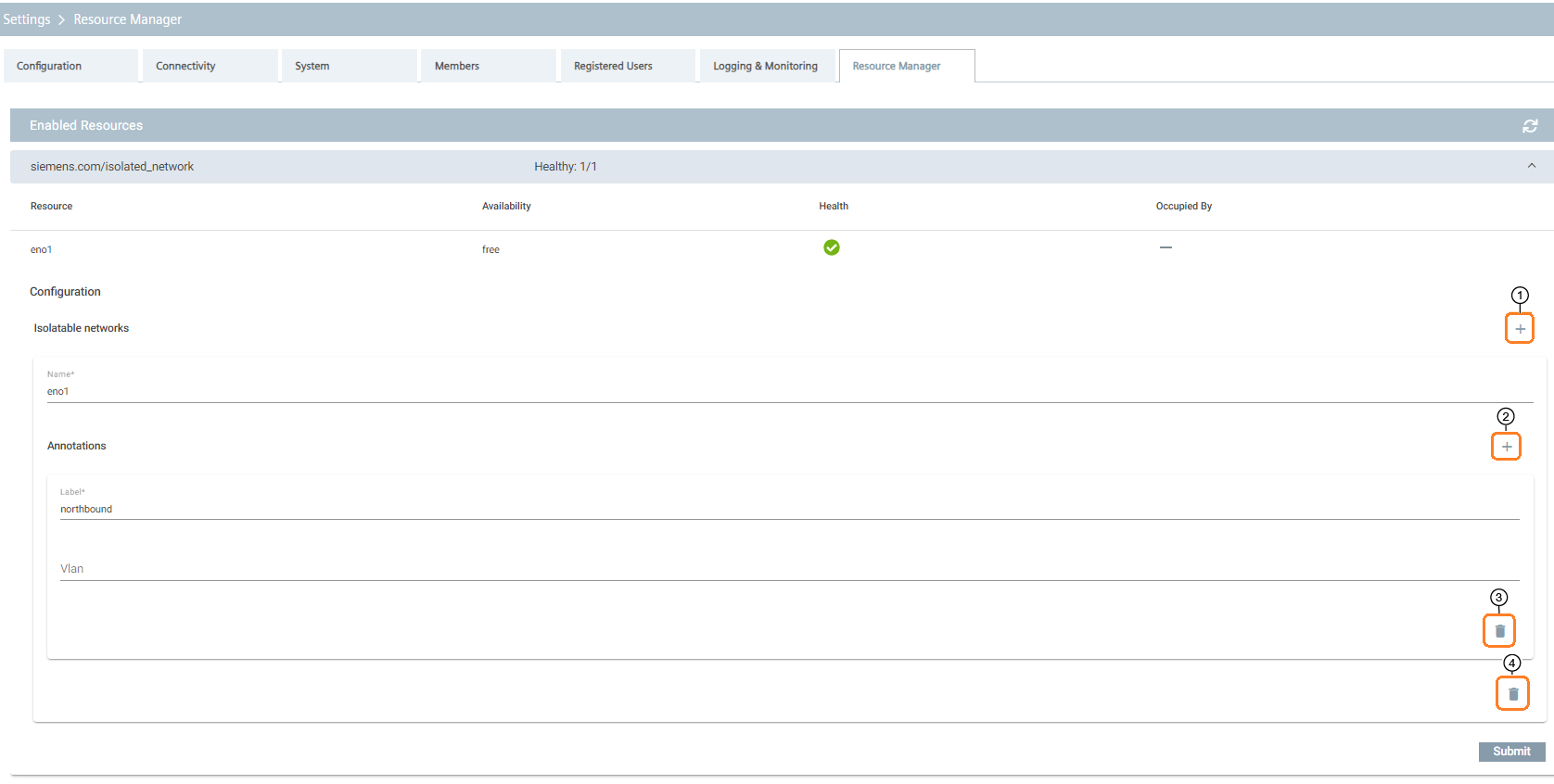
| Number | Description |
|---|---|
| ① | Add network interfaces |
| ② | Add annotation |
| ③ | Delete annotation |
| ④ | Delete network interface |
The user interface allows isolatable interfaces to be added with control ①, isolatable interfaces to be removed with control ④, annotations be added with control ②, and annotations be removed with control ③.
The Isolatable networks section specifies a set of network interfaces that can be claimed exclusively by Industrial Edge apps.
Each isolatable network interface is identified by the network interface name as assigned by the host system.
The network interface names on the host system are also listed in the network settings user interface and can be used as a reference.
In order to map network interfaces to applications, a labeling mechanism is used. Applications claim network interfaces based on labels stated in their application manifests. The edge operator is responsible for annotating the isolatable interfaces with labels. Whenever an application starts and is claiming an isolated interface, it will obtain one of the interfaces labeled correspondingly.
Each interface can be annotated with multiple labels, since each network interface can be connected to multiple different networks. In order to direct the application traffic to the correct network depending on which applications obtains the interface, a vlan tag can be specified per label. If no vlan tag is specified or a vlan id 0, then no vlan tagging of the outgoing packets is taking place on that interface. Also, multiple interfaces can be annotated with the same label, since multiple interfaces can potentially be connected to the same network. An application claiming an isolated network based on such a label will obtain any one of the interfaces labeled accordingly.
In order to persist configuration changes, the operator has to submit them. Any submitted configuration changes are picked up by the plugin right away and do not require a reboot. Edge operators are allowed to remove network interfaces from the list of isolatable interfaces, even while interfaces are claimed by apps. The plugin will then still report the interface in the user interface albeit as unhealthy. This unhealthy state indidcates that the interface can no longer be isolated even after release. The unhealthy interface will disappear from the list of resources at the latest on reboot. For a clean workflow, we recommend to stop applications before removing their corresponding resources from the configuration. If the interface is not claimed and removed by the operator from the configuration, it will disappear right away from the user interface. The plugin also allows non-existent network interface names to be added to the list of isolatable interfaces, for example, to allow network cards to be temporarily removed without having to change the configuration before or afterwards.
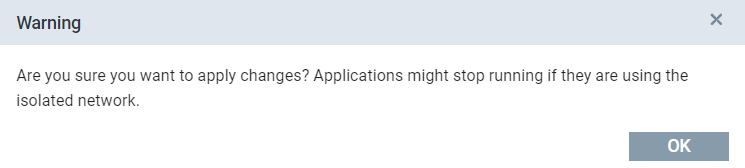
Note When operators apply configuration changes to network interfaces which are currently isolated like deleting the interface or changing its annotations, a warning dialog will be displayed when clicking the submit button.
Note Operators should add network interfaces and annotations before installing an application using isolated networks. Otherwise, the installation will fail.
Graphics Processing Units (GPUs)
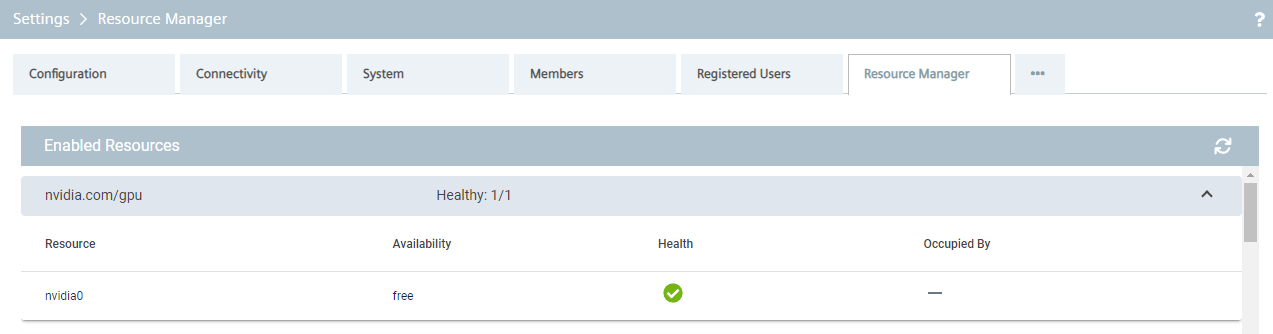
Industrial Edge's GPU plugin enables apps to make use of GPUs available in the Edge Device. The screenshot below shows a system with one Nvidia GPU, which is not occupied by an app. At present, there are no configuration options for GPUs.