In the Connectivity tab, you check your network connection and set your proxy settings
LAN Network
When you click the LAN Network tile, you can check the network properties of your IEM OS.
By clicking the
 icon, you configure your DNS servers.
Proxy Network
When you click the Proxy Network tile, you open the proxy settings.
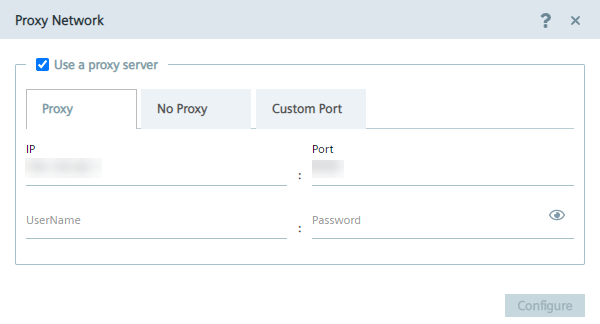
You can configure the following proxy settings:
- Proxy
- No proxy
- Custom port
After you have configured the proxy settings, you save the proxy settings by clicking Configure.
Proxy
In the Proxy tab, you activate, if needed, the use of a proxy server to connect to the IEM and configure the proxy server.
To configure the proxy server, proceed as follows:
-
To use a proxy server, click the
Use a proxy servercheck box. The input fields for the proxy server are enabled. -
Enter the IP address and the corresponding port of the proxy server in the according input fields.
-
In case of an additional authentication for the proxy server, enter username and the corresponding password in the according input fields. When authentication is required, the password must match the following criteria:
- The password must start with an alphabetic character
- The password must not contain complex characters, such as . * `
- The password must not be longer than 21 characters
The settings apply for HTTP and HTTPS proxy servers.
No proxy
In the No Proxy tab, add all IP addresses which shall be accessed directly (without use of proxy).
By default, several no proxy addresses are listed which are required by the IEM.
If you want to add a further IP address which shall be accessed directly, enter the IP or domain in the IP input field and click the icon.
When you use a proxy server to connect to the IEM after you have installed the IEM, you must add the Edge Management URL and Edge Management Hub URL name of the IEM, that you have configured during the setup of the IEM, to the no proxy address list.
Otherwise, several errors can occur when you use the IEM.
Custom port
In the Custom Port tab, you configure ports for apps which use the configured ports for outgoing communication through the proxy on HTTPS or HTTP protocols.
By default, several ports are listed which are required by the IEM.
Note Default no proxy addresses and ports The default no proxy addresses and ports are essential for running the IEM and cannot be deleted. If you want to add a port, select the required protocol from the
Protocoldrop-down list and enter the required port.
To add the port, click the
 icon.
icon.