Management
In the Management screen, you get an overview of all running and stopped apps on the specific Edge Device including some basic app statistics.
Also, the specific app volumes are displayed under Application Volumes.
After you have installed apps on the Edge Device and started at least one app, the Management screen is displayed as follows, for example:
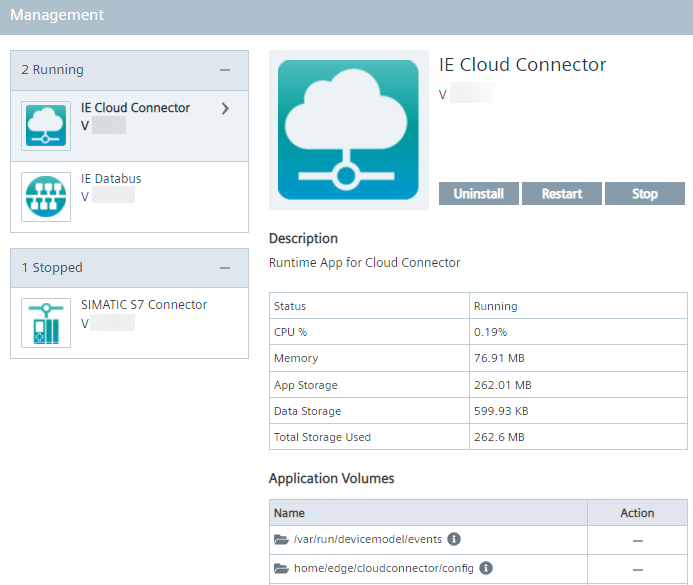
Managing an app
To manage your app, the following options are available:
-
Start: Start the app
-
Stop: Stop the app
-
Restart: Restart the app
-
Uninstall: Uninstall the app from the Edge Device
-
Clean: Clean up any resources occupied by the app
Restart and Stop
TheRestartandStopbuttons are only available for running apps.
Start and Clean
TheStartandCleanbuttons are only available for stopped apps.
After you have installed apps on the Edge Device and stopped at least one app, the Management screen will look like this:
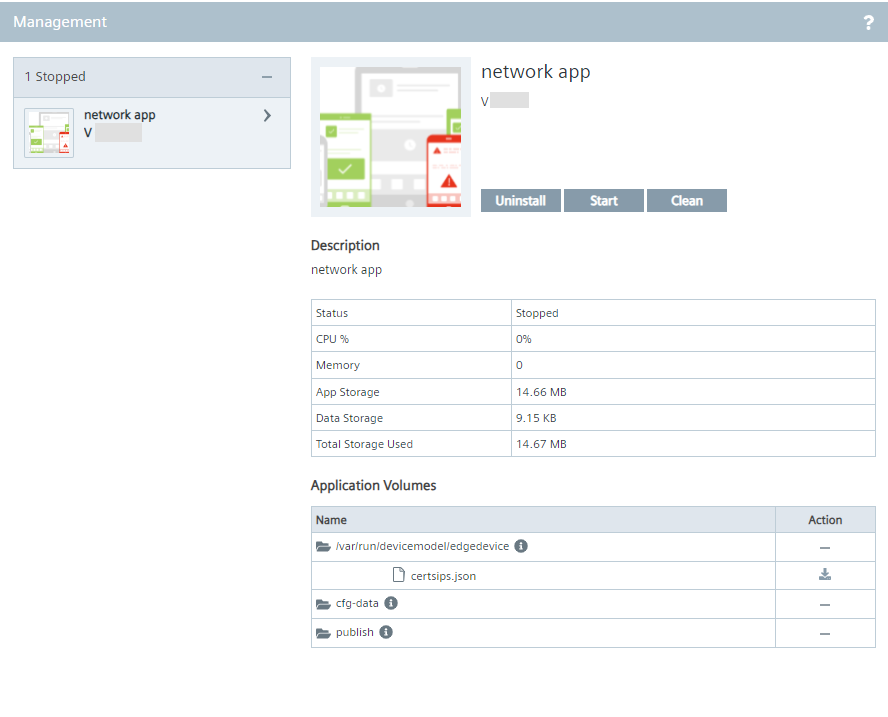
App statistics
The following statistics are displayed when selecting an app:
- Status: Current app status, for example
RunningorStopped - CPU %: Total CPU % usage by running container(s) of application.
- Memory: Total memory used by running container of application. It is calculated via executing the command
docker stats containerID. - App Storage: Total storage used by all images and containers of application. Calculate size via the command
docker ps -a --size, add the size of all container. - Data Storage: Total storage used by application’s mounted volumes.
- Total Storage Used: It shows total used storage by application (Sum of App Storage and Data Storage)
Downloading app volume files
By clicking the
 icon of an app volume file, you download the specific file.