Warning and Error Messages
| Message | Type (Warning/Error) | Detailed Reason | Troubleshooting |
|---|---|---|---|
| Timed Out. Please check your configuration |  |
If valid certificate and key are uploaded, with correct configuration details are entered in edit pop up wrong scope id and clicked on provision.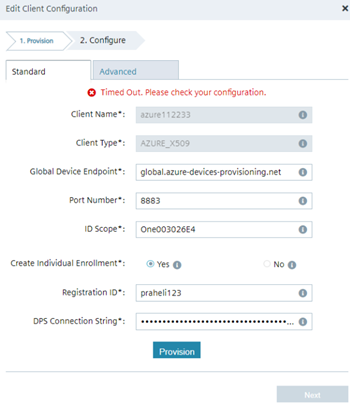 |
Please provide correct scope id and configuration details and click provision. |
| Timed Out. Please check your configuration and make sure your device is enrolled. | |
If “Create Individual Enrollment” is selected "No" and provisioning fails, then the error message is displayed. 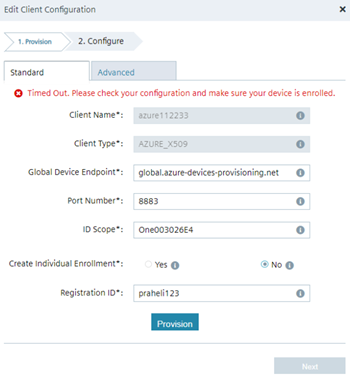 |
Device needs to be enrolled at the Azure portal before provisioning. |
| Provision failed | |
When an incorrect/invalid certificate is uploaded, then the error message is displayed.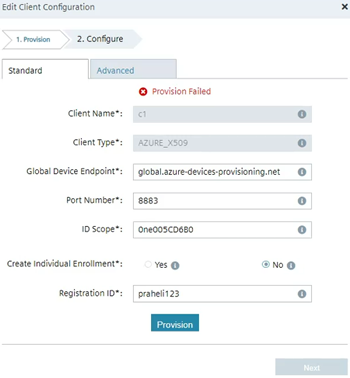 |
Correct/valid certificate needs to be uploaded. |
| The certificate is not a valid base64 string value | |
When an incorrect encoding of certificate is used for provisioning.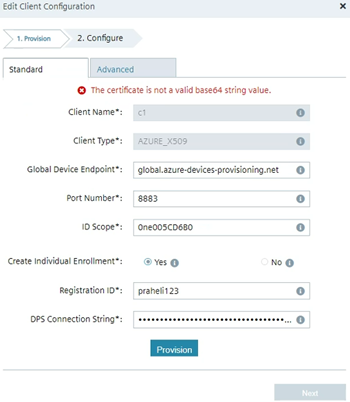 |
Correct encoded certificate to be used. |
| Provisioning service “CloudConnectorDPS” does not gave authorization rule. | |
When an incorrect certificate and “DPS Connection String” used.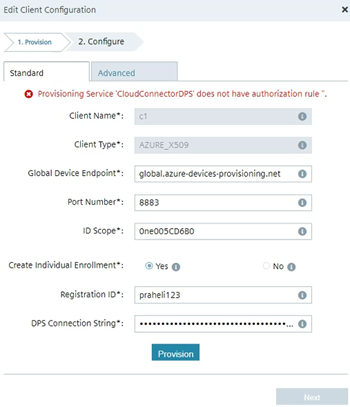 |
Correct certificate and DPS connection string value to be used |
| Invalid connection string. | |
- If valid certificate and key are uploaded, with correct configuration details are entered in “Edit Client Configuration” dialog box and invalid "DPS Connection String" and click provision. - If invalid certificate and key are uploaded, with correct configuration details are entered in “Edit Client Configuration” dialog box and invalid "DPS connection String" and click provision. 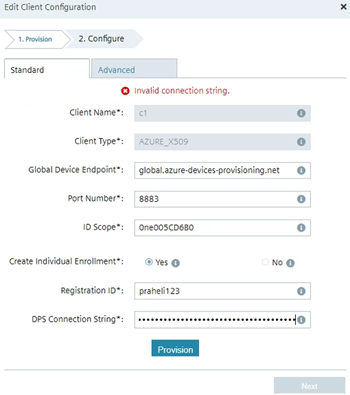 |
User correct DPS connection string value. |
| Disconnected |  |
If only certificate and key are uploaded without any configuration details in “Edit Client Configuration” dialog box up and without deploy. | Enter all the missing details in provision and configure tabs and click deploy. |
| Enter all the missing details in provision and configure tabs and click deploy. | |
If only certificate and key are uploaded without any configuration details in “Edit Client Configuration” dialog box and with deploy. | Enter all the missing details in provision and configure tabs and click deploy. |
| The Registration ID does not match the common name of the certificates. Please give the same name used for generating certificates. | |
If valid certificate and key are uploaded, with correct configuration details are entered in“Edit Client Configuration” dialog box wrong "Registration ID" and clicked on provision. | Enter valid "Registration ID" and it should be same as common name provided while creating the certificate |
| Error registering device: NotConnectedError: rhea: connection disconnected Error while connecting with Azure portal. Please check your proxy details or device certificate and key. | |
If valid certificate and key are uploaded, with correct configuration details are entered in “Edit Client Configuration” dialog box wrong "Global Device Endpoint" and click provision. | Enter correct "Global Device Endpoint" and click provision. |
| The Registration ID does not match the common name of the certificates. Please give the same name used for generating certificates. | |
If right configuration details are entered in “Edit Client Configuration” standard tab but invalid certificate and key are uploaded in advanced tab. | Enter valid certificates, where "Registration ID" matches the common name which is used while creating the certificate |
| Error registering device: Error: error: 0909006C:PEM routines: get_name:no start line | |
If right configuration details are entered in “Edit Client Configuration” standard tab with correct certificate but wrong key are uploaded in advanced tab. | Enter the valid key. |
| The Registration ID does not match the common name of the certificates. Please give the same name used for generating certificates. | |
If right configuration details are entered in “Edit Client Configuration” standard tab with correct key but invalid certificate are uploaded in advanced tab. | Enter valid certificates, where "Registration ID" matches the common name which is used while creating the certificate |
| The Registration ID does not match the common name of the certificates. Please give the same name used for generating certificates. | |
If invalid certificate and correct key are uploaded in “Add Client” dialog box and added correct details in “Edit Client Configuration” dialog box and click on provision | Enter valid certificates, where "Registration ID" matches the common name which is used while creating the certificate |
| Error registering device:Error: error: 0B080074:x509 certificate routines: X509_check_private_ key:key values mismatch | |
If valid certificate and wrong key are uploaded in “Add Client” dialog box and added correct details in “Edit Client Configuration” dialog box and click on provision | Enter the valid key. |
| Error registering device: NotConnectedError: rhea: connection disconnected Error while connecting with Azure portal. Please check your proxy details or device certificate and key | |
Enter correct details in “Edit Client Configuration” standard tab, wrong proxy host and port in advanced tab | Enter correct proxy host and port. |
| Error registering device: NotConnectedError: rhea: connection disconnected Error while connecting with Azure portal. Please check your proxy details or device certificate and key | |
Enter correct details in “Edit Client Configuration” standard tab, correct proxy port but wrong proxy host in advanced tab | Enter correct proxy host. |
| Error registering device: NotConnectedError: rhea: connection disconnected Error while connecting with Azure portal. Please check your proxy details or device certificate and key | |
Enter correct details in “Edit Client Configuration” standard tab, correct proxy host but wrong proxy port in advanced tab | Enter correct proxy port. |
| Operation: Connection failed. error is : Connection refused | |
Enter correct details in “Edit Client Configuration” standard tab and advanced tab but add proxy and remove http 8883 port in IEM and IED and click deploy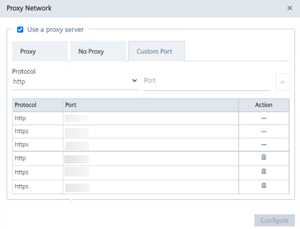 |
Add http 8883 port in IEM and IED |
| Operation: Connection failed. error is : Connection refused | |
Operation: Connection failed. error is : Connection refused | Add http 8883 port in IED |
| Operation: Connection failed. error is : Connection refused | |
Enter correct details in “Edit Client Configuration” standard tab and advanced tab but add proxy and http/https 8883 port in IEM and remove port in IED and deploy | Add http/https 8883 port in IED |
| Operation: Connection failed. error is : Connection refused | |
Enter correct details in“Edit Client Configuration” standard tab and advanced tab but remove all proxy in IEM and IED and deploy | Add proxy in IEM and IED |
| Disconnected, Error Code from Broker : 5, Error message : The connection was refused. | |
If correct data entered in standard and advanced tab deploy(client connected), now go to Azure portal and delete device. | No retry policy available for Azure client if the device is deleted from the Azure portal. |
| Error registering device: CA certificate not found. Error while connecting with Azure portal. Please check your proxy details or device certificate and key | |
If correct data entered in standard and advanced tab deploy( client connected), then in Azure portal and delete enrollment(ex: ashadps). Now navigate in UI to “Edit Client Configuration” > select No for "Individual enrollment" and click on provision. | Device needs to be enrolled at the Azure portal before provisioning. |
| No error displayed(getting loading icon) | |
If invalid certificate authority is uploaded instead of Baltimore and deployed | Upload the valid Baltimore certificate. |
| Registration ID is already configured for another client. | |
If you try to configure a new client in same UI with the same certificate details and click on provision. | Use a new valid certificate to create new client. |