OS Bar
The OS bar is a navigation element for the Industrial Edge Management and as such always visible. It includes common functionallities. Currently Logout, User Information, Legal Information is part of this component.
Overview
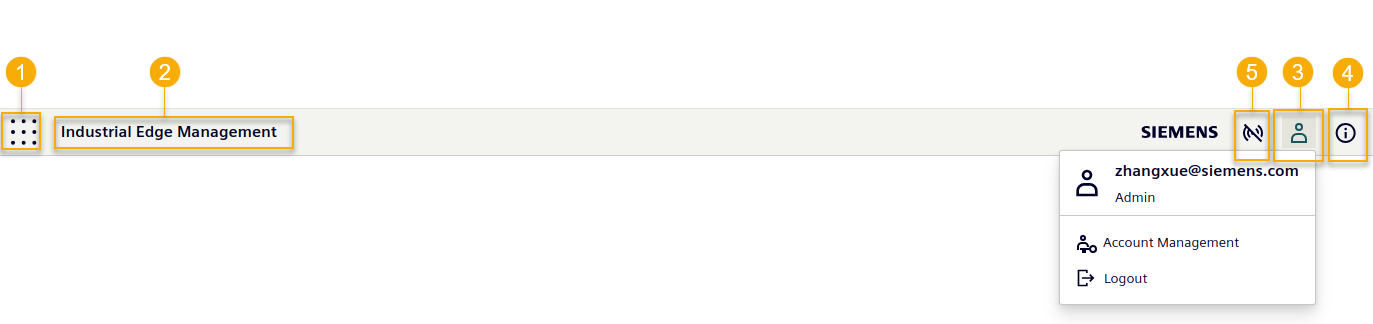
| ① | Navigates back to the Launchpad. | |
| ② | Current location and display name, provided by currently used IEM Application. | |
| ③ | User information, Account Management and Logout. | |
| ④ | Further system information, provided by the app developer.
 |
|
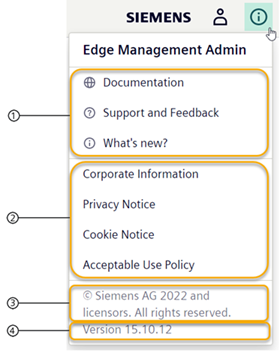
| ① | Different types of Links can be provided by the app developer. Types are WWW, WHATSNEW and FEEDBACK. These entries are optional. WWW can be more than one link (array), WHATSNEW and FEEDBACK should only be once there. | |
| ② | Privacy and Policies are set by default to use Siemens Edge Standard Links. This can be changed by the app developer to be completely disabled (links are not their) or they can set to other links. | |
| ③ | Legal information. | |
| ④ | Version of the helm chart. | |
| ⑤ |
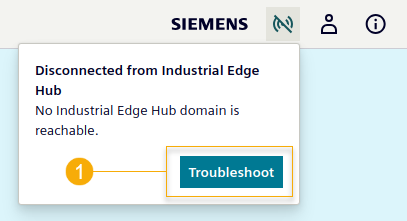
Industrial Edge Hub connection status indicator.
|
|
| ① | A troubleshoot button, click to start a diagnostic process. | |
Connection status between IEM & Industrial Edge Hub
There are three states to describe how the IEM is connected to the Industrial Edge Hub.
| Icon | Description |
|---|---|
 |
Connected The IEM is considered connected if it can connect to all of the following domains. https://portal.eu1.edge.siemens.cloud https://portal-hub.eu1.edge.siemens.cloud https://portalhub.eu1.edge.siemens.cloud https://portalauth.eu1.edge.siemens.cloud https://artifacts.eu1.edge.siemens.cloud https://products.eu1.edge.siemens.cloud |
 |
Partial connected For the above domains, we consider it partially connected if only some of them are reachable or network time difference between Industrial Edge Management and Industrial Edge Hub is greater than 5 seconds. |
 |
Disconnected If none of the above domains are reachable, we consider them to be disconnected. |
Industrial Edge Hub connection troubleshooter
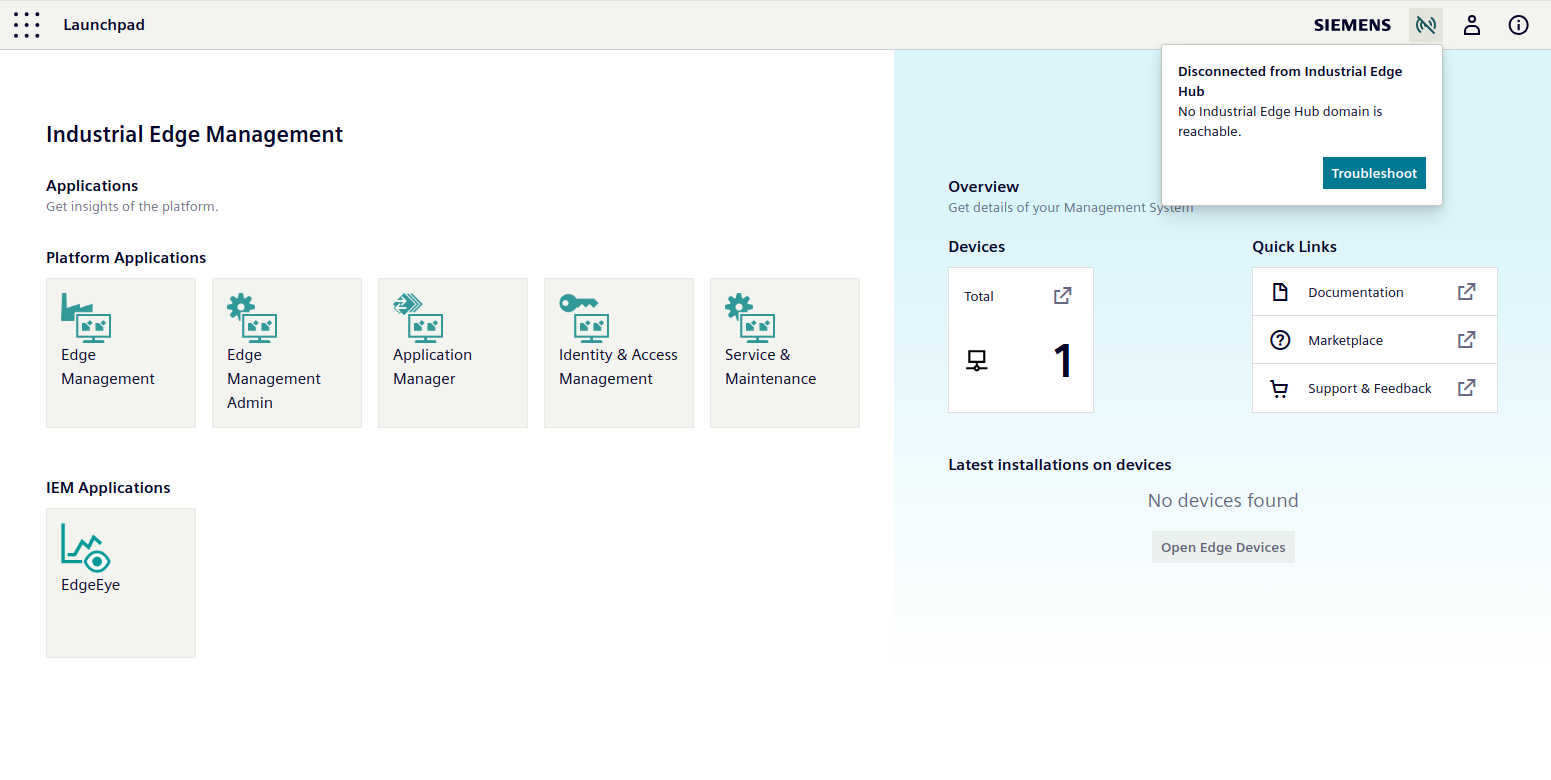
There is a Troubleshoot button shown. Click it to start a diagnostic process.
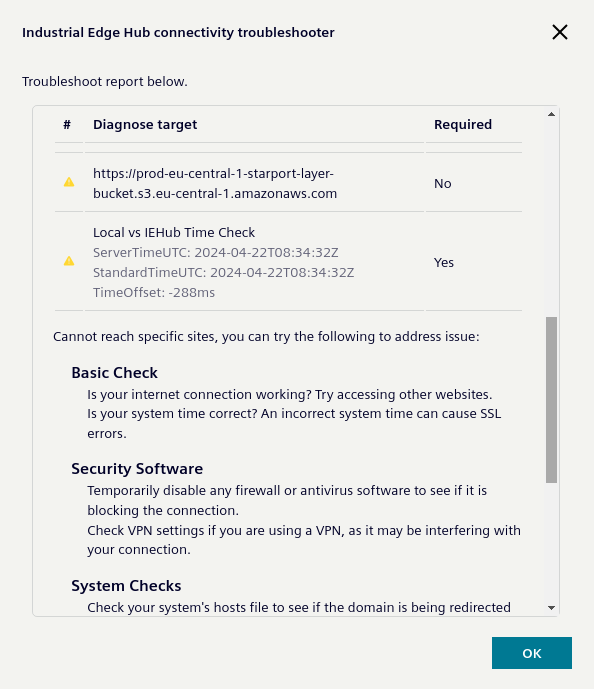
The checked endpoints will be listed as below,
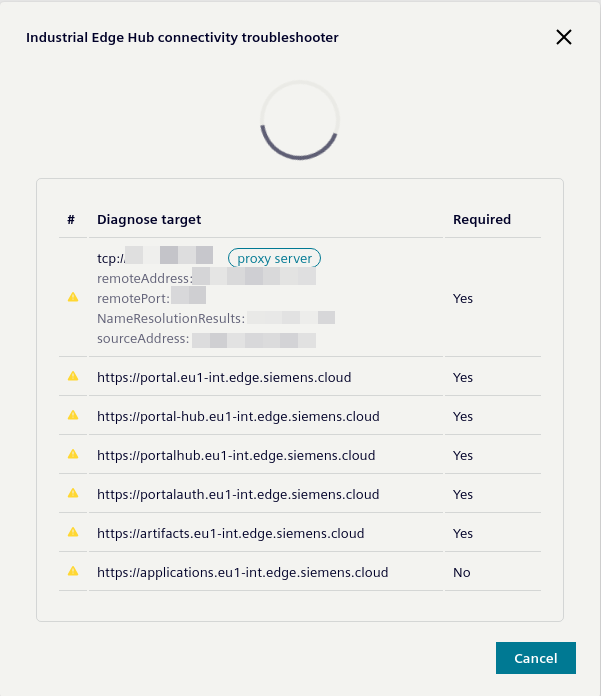
The diagnostic process will
- Establish a TCP connection to a specific port to check whether or not the following domains are reachable.
Dest. Port Destination Destination for China Region Description TCP 443 • portal.eu1.edge.siemens.cloud
• portal-hub.eu1.edge.siemens.cloud
• portalhub.eu1.edge.siemens.cloud
• portalauth.eu1.edge.siemens.cloud
• artifacts.eu1.edge.siemens.cloud
• products.eu1.edge.siemens.cloud
• portal.cn1.edge.cloud-siemens.cn
• hub.cn1.edge.cloud-siemens.cn
• artifacts.cn1.edge.cloud-siemens.cn
• products.cn1.edge.cloud-siemens.cn
Https access to Industrial Edge Hub TCP 443 • applications.eu1.edge.siemens.cloud
• oss.eu1.edge.siemens.cloud
• portal-relay.eu1.edge.siemens.cloud
• cr.eu1.edge.siemens.cloud
• prod-eu-central-1-starport-layer-bucket.s3.eu-central-1.amazonaws.com• application.cn1.edge.cloud-siemens.cn
• oss.eu1.edge.siemens.cloud
• portal-relay.cn1.edge.cloud-siemens.cn
• cr.cn1.edge.cloud-siemens.cn
Https access to Industrial Edge Hub (Optional).
Note that it doesn't affect the indicator's connection state even if these non mandentory domains are unreachable.TCP 2020 • portal-relay.eu1.edge.siemens.cloud
• portal-relay.cn1.edge.cloud-siemens.cn
Siemens remote support (IEM ➔ Industrial Edge Hub). Optional
- Compare the consistency of network time synchronization between Industrial Edge Management and Industrial Edge Hub.
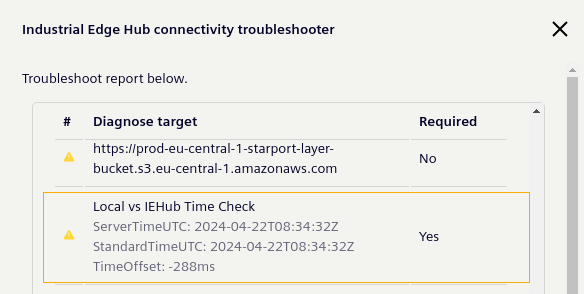
After the diagnostic process completed, some self-checking notices are displayed.
-
If the proxy server exists and is unavailable, text is displayed reminding users to check the proxy server.
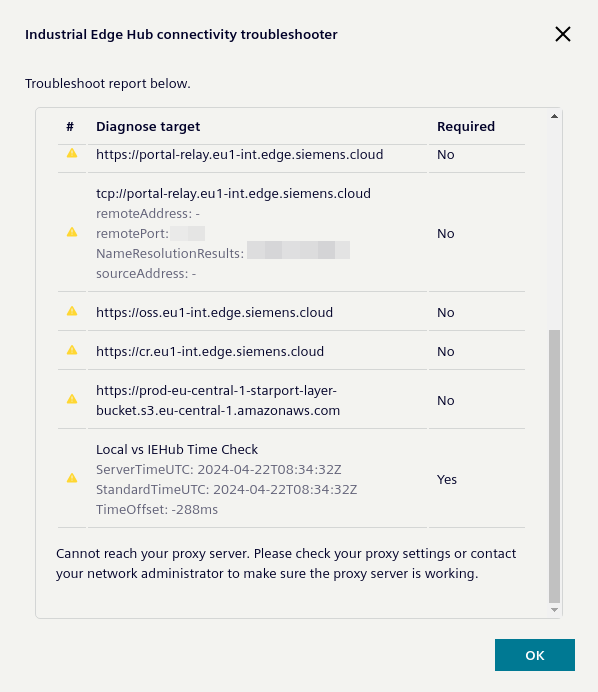
-
Otherwise, some basic self checking hints will appear.