Apps
In the "Apps" screen you get an overview of all installed apps on the specific Edge Device. After you have installed an app to the Edge Device, the "Apps" screen is displayed as follows for example:
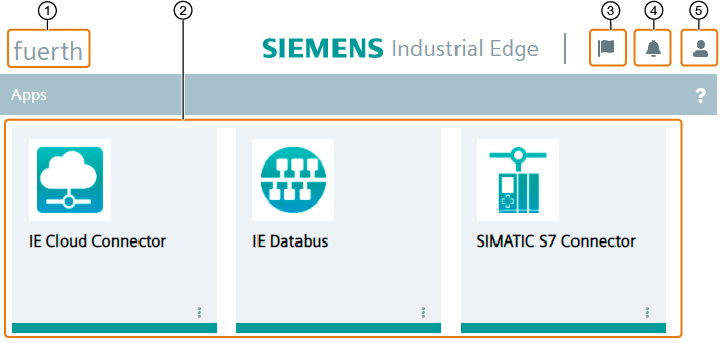
① Edge Device name
② Installed apps on the Edge Device
③ Display and hide job tasks
④ Display and hide Edge Device notifications
⑤ Sign out and edit the user profile
The icons in the upper right header area are available independently of the menu item. Once you have edited your user profile, you close the user profile by clicking "Home" underneath the header.
Launching an app
To launch an app, click the tile of the app. A new tab opens in the browser with the UI of the app.
UI of the app
The UI opens only for apps that support a web-based user interface.Launching an app configured by a configurator
You launch apps that are configured by a configurator in the respective IEM under "Data Connections".
Edge App commands
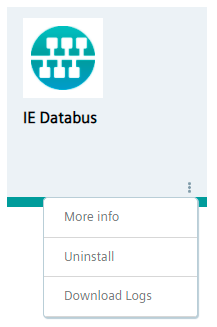
When you click the
 icon in the lower part of the app tile, the following drop-down list opens for example: