Add Data Source
You can add a data source in Edge OPC UA Server Configurator to fetch the data from the PLCs/data published through the Databus. This data is sent to Edge OPC UA clients.
Prerequisite
- The Edge OPC UA Server Configurator must be running.
- A data source must be installed.
Procedure
To add a data source, follow these steps:
-
Launch the Edge OPC UA Server Configurator.
The Edge OPC UA Server Configurator home page is displayed.
-
Click "Data Source" tab.
-
Click "Add"
 icon.
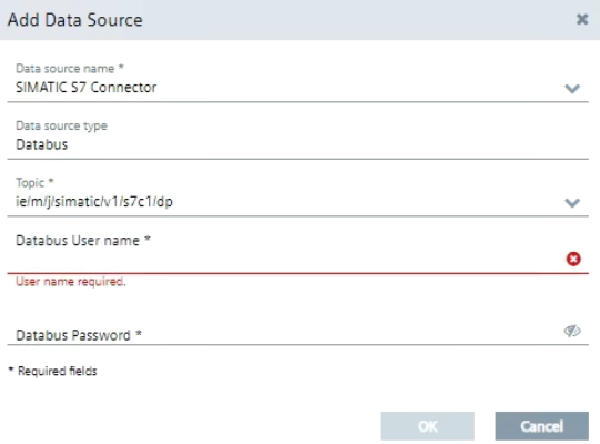
icon.The "Add Data Source" dialog box is displayed as follows:
-
Complete the following fields:
Field Name Definition Data Source Name Specifies the data source name. The data sources (connectors) that are installed in Industrial Edge Device, are displayed in the drop-down. Additionally, you can define another connector as required. Data Source type Displays the data source type. Topic When you specify the data source in "Data Source Name" field, the meta data topic is added in this field automatically. Additionally,you can define a meta data topic as required. User name Defines the username of Databus user. Password Defines the password of Databus user. NoteYou can add multiple data sources as required but the Databus username and password must be same for all the configured data sources.
-
Click "OK".
The data source is added and displayed as follows:

Note- You can add more data sources using
.
- You can edit a data source using .
.
- You can delete a data source using .
.
- You can connect the added data sources to Industrial Edge Runtime using .
.
- Duplicate entries of similar metadata topics are allowed.