Home
The following figure shows the Home screen of the Maintenance UI as an example:
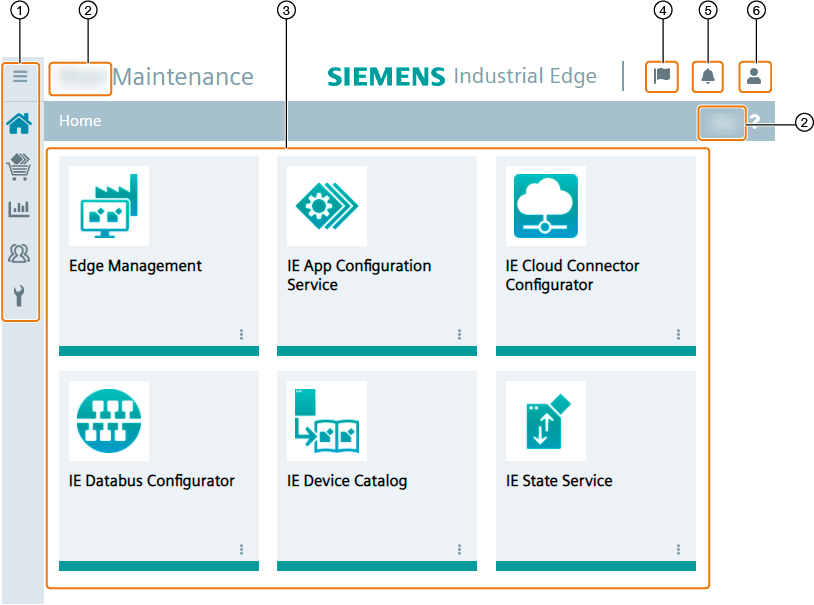
| ① | Navigation menu |
| ② | IEM OS name |
| ③ | Installed apps in the Maintenance UI |
| ④ | Display and close IEM OS jobs |
| ⑤ | Display and close notifications |
| ⑥ | Sign out and edit user profile |
The Home screen lists all apps that are installed in your IEM OS.
When you successfully create the IEM OS, the IEM is automatically installed as Edge Management app in your Maintenance UI.
Before opening the IEM, ensure that all configurators are installed.
You install the configurators from the catalog.
App commands
When you click the
 icon in the lower part of the app tile, the following drop-down list opens for example:
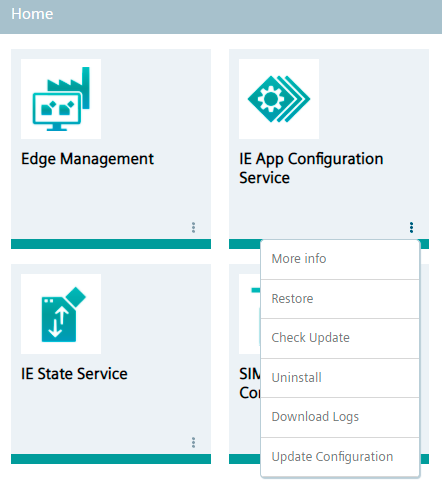
The shown drop-down list has the following commands:
-
More Info: Opening app details
-
Restore: If a backup version of the app is available, restore the app to a saved version
Note Disabled backup and restore feature Since Industrial Edge Management V1.1, the
Restorecommand is disabled. -
Check Update: Checking, if an app update is available
-
Uninstall: Uninstalling the app
-
Download Logs: Downloading the app logs as
*.tarfile -
Update Configuration: Updating the app configuration
The available app commands, and in general functionalities and operations within the IEM OS, depend on the role respectively permissions that are assigned to the group that you have joined to access the IEM OS.
The available roles and permissions are listed in the Roles subsection.
Note Updating the Industrial Edge Management You find the procedure and additional information on how to update the Industrial Edge Management, the Industrial Edge Management App and other components in the
Industrial Edge - Update Proceduresmanual.