IAM - Overview
IAM (Identity and Access Management) provides core functionality for managing users, roles, groups, permissions, service2service authentication, authorization and the gateway. It is based on open source components (Keycloak and Kong). Some facade components exist for legacy reasons.
Login and Logout
User can login to IEM using launchpad url. User can enter his username or email and password and click on Login.
The user can logout by clicking on the logout button in launchpad.
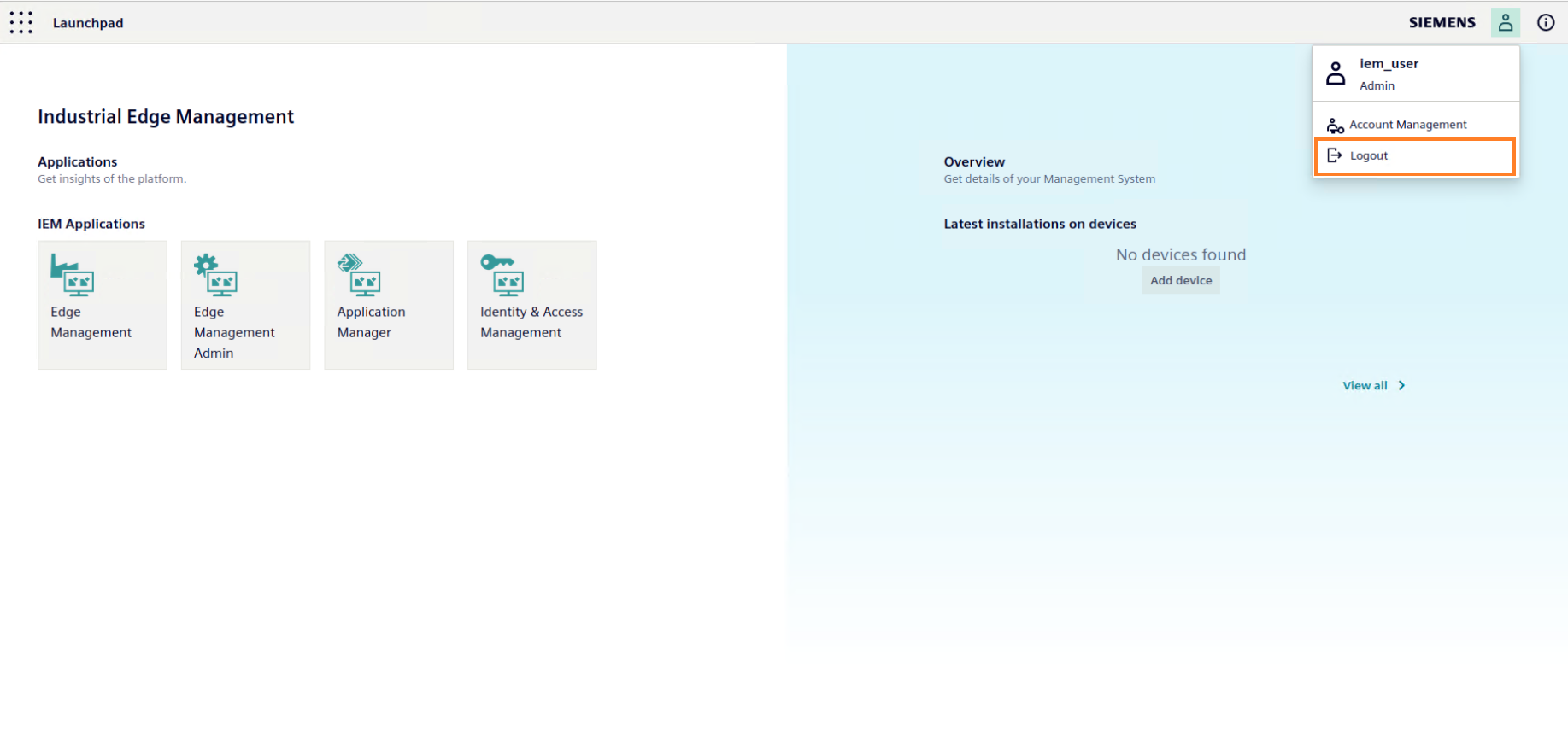
User Info
The logged in user's details can be obtained by clicking on the user info icon on launchpad.
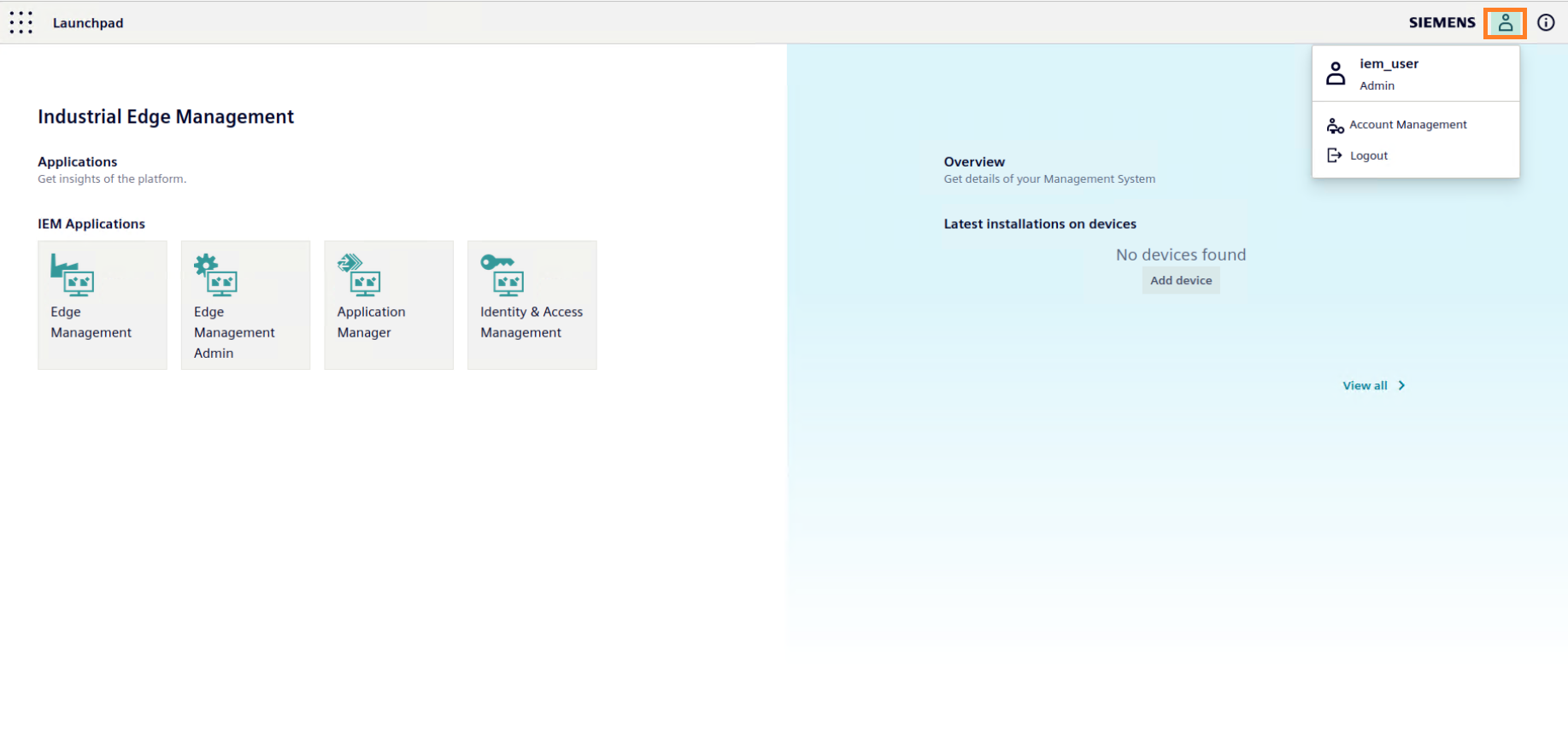
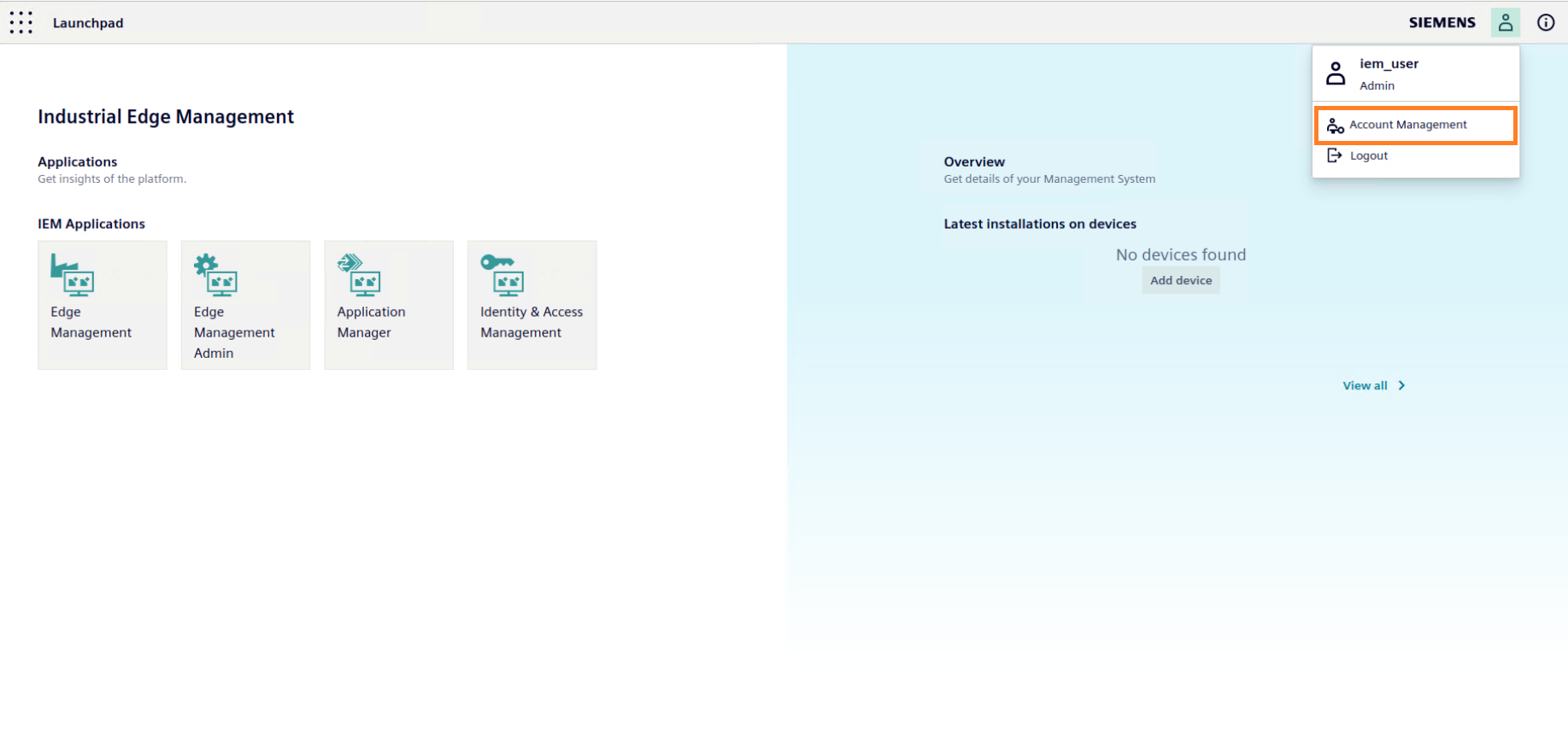
Account Management
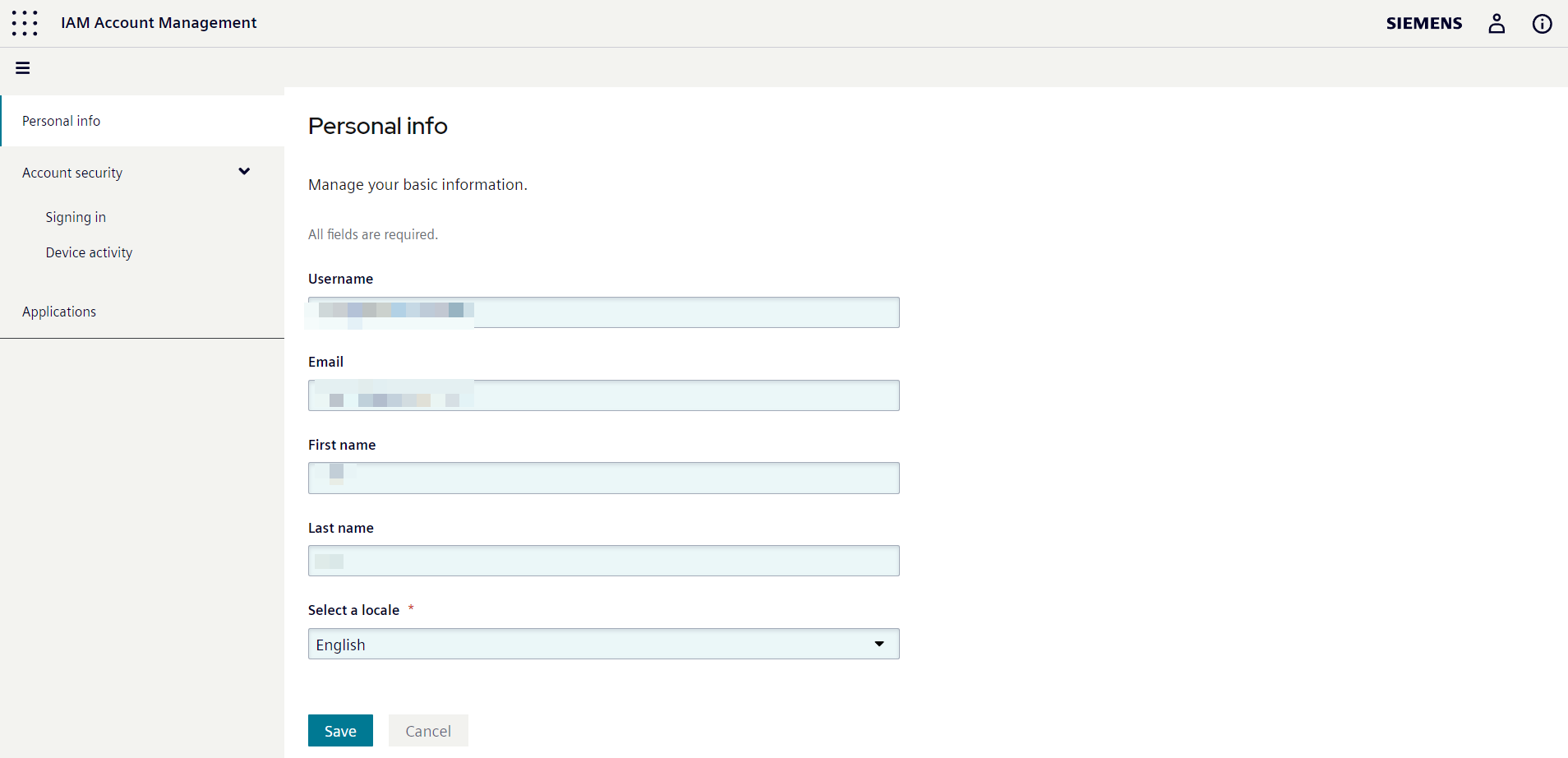
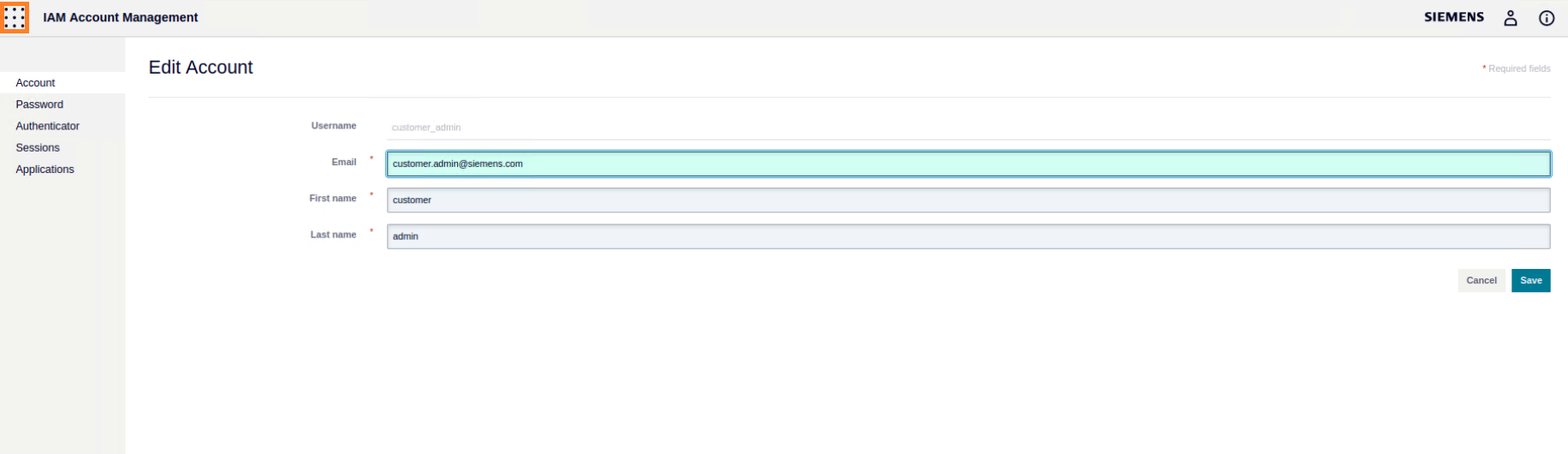
The user can update his account details. change password, set an additional authenticator etc in account management.
Launchpad tile
The launchpad tile on IAM account management and admin management lets the user navigate to launchpad.
IEM Users
Upon successful deployment of the IEM, two users are automatically created: the System Admin and the IEM Admin. It's important to note that these users are initially set with default values for their username and email, but users have the option to configure these values during the installation process. You can find more information on this topic in the Quickstart Onboarding using Templates section.
System Admin
The System Admin user is responsible for managing the customer realm. This user is created with the default username customer_admin and an automatically generated password. In addition to having administrative rights in the IEM, this user also has the ability to manage Keycloak settings within the customer realm.
IEM Admin
The IEM Admin user is the intended user for the IEM. By default, this user is created with the username iem_user and an automatically generated password. This user is enabled for the IEM and holds the administrator role for the IEMA. While this user is enabled by default, it can be disabled during the installation process by setting the flag --set central-auth.keycloak.initialUser.enabled=false. More detailed instructions on configuring users and passwords during installation can be found in the Configure Users and Passwords for the First Installation section.
Keycloak Sidebar Overview
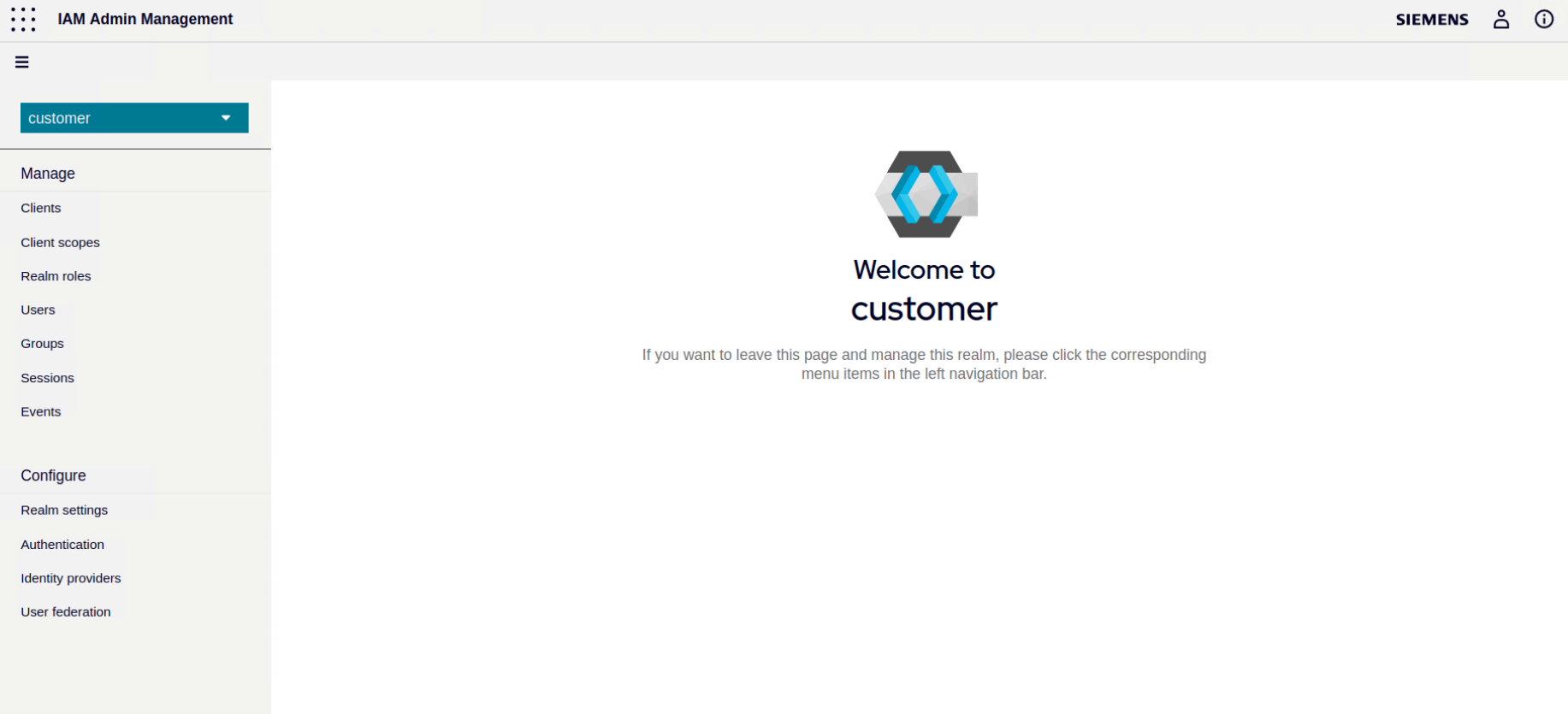
If the user is logged in as customer_admin, he will be able to access customer realm admin console by clicking on Identity and Access Management icon on launchpad. The user will see various options to manage clients, realm roles, users, groups, sessions, events etc. The user can also configure authentication and identiy providers or change realm settings here.
Realm
Users, credentials, roles, and groups within the IEM are managed by realms. A realm is responsible for managing the authentication and authorization of users. Each user is assigned to a specific realm, which they can log into. It's important to note that different realms can coexist simultaneously and are isolated from each other. Each realm can only manage and authenticate users within its own control. However, it's worth mentioning that the IEM does not support additional realms and is specifically configured to work with the Customer realm.
Upon deploying the IEM, a default realm called the Customer realm is automatically created.
Customer Realm
The Customer realm is for the actual IEM user. Do not change anything related to customer roles in this realm. Otherwise, the IEM might not function properly.