Settings
Under Settings, you manage the settings of your cluster or the node included in the cluster respectively.
By clicking the drop-down list on the left, you can switch between these 2. The first entry is the cluster which represents an overview of all available resources and nodes. The second entry represents the node which is included in the cluster and which runs containerized applications, for example the IEM OS. At the moment, only 1 node is available.
For both, the following are the configurable settings:
- Alerts
- Configuration
- Connectivity
- Storage
- System
- Recovery
Note Disabled backup and restore feature Since Industrial Edge Management V1.1, the
Recoverytab is disabled. - Members
The functionalities and enabled features in each tab are adapted to the selected entry from the drop-down list.
Statistics
Below the drop-down list depending on the selected entry, either the statistics and system properties of the cluster or of the node are displayed. When you select the cluster, drives and nodes and their status are being displayed.
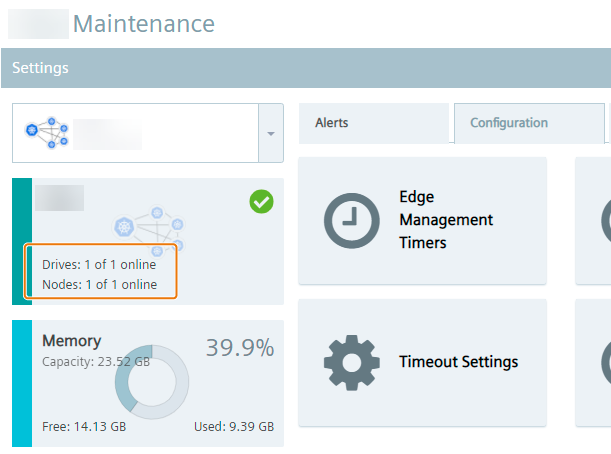
When you setup the IEM OS, 2 hard disks are required. The first one is for the OS and the second one is for the application's data. Drives in this case relate to the first hard disk. Nodes in this case relate to the 1 node that is included in the cluster and that you can also select from the drop-down list.
When you select the node from the drop-down list, status and number of drives are displayed as well.
The node can contain multiple disks beside the one that you added when setting up the IEM OS for the application's data.
You find information on how to add a disk respectively additional storage to the system in the Adding additional storage to the IEM subsection.
These disks are used to create 1 big data pool to store application's data.
If you add more than 1 hard disk, this will be reflected accordingly with the drives.
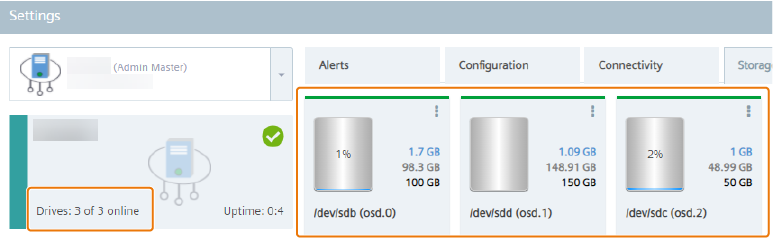
If the node is offline, the drives attached to this node will also be in offline status. If the node has 3 disks and 1 disk is removed from the VM directly, the status will show 1 drive offline and 2 drives online.