My Admin Groups - Overview
Admin groups enable access to Edge Devices.
In the Groups > My Admin Groups screen you create groups and add new users to these groups.
In that way, you share your Edge Devices with members of the group.
After inviting new users to a group, all members of the group have access to any Edge Devices within this group. Depending on the permissions you give other group members, the members are, for example, just allowed to reboot or shutdown Edge Devices.
The layout of the My Admin Groups screen varies depending on whether or not you have already created an admin group.
If you have created no groups yet, the My Admin Groups screen is displayed as follows:
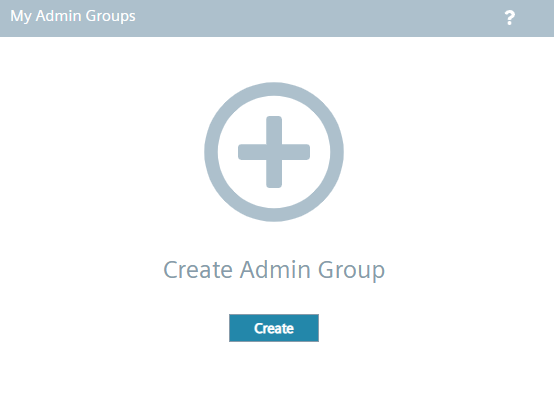
Once you have created an admin group, the Create Admin Group button is displayed on the right of the title bar of the My Admin Groups screen and the Add Edge Devices button is enabled.
The following screen shows an example with an already added Edge Device:
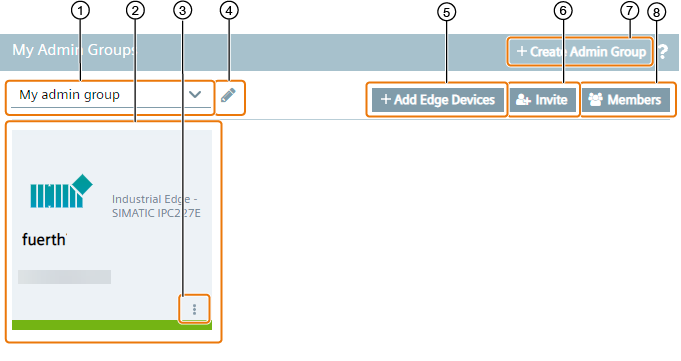
| ① | Drop-down list of existing admin groups |
| ② | Assigned Edge Devices to the group |
| ③ | Removing Ede Devices from the group and opening Edge Device statistics |
| ④ | Editing the in ① selected group |
| ⑤ | Adding an Edge Device to the group |
| ⑥ | Invite new members to the group |
| ⑦ | Create a new admin group |
| ⑧ | Display joined and pending users of the group |
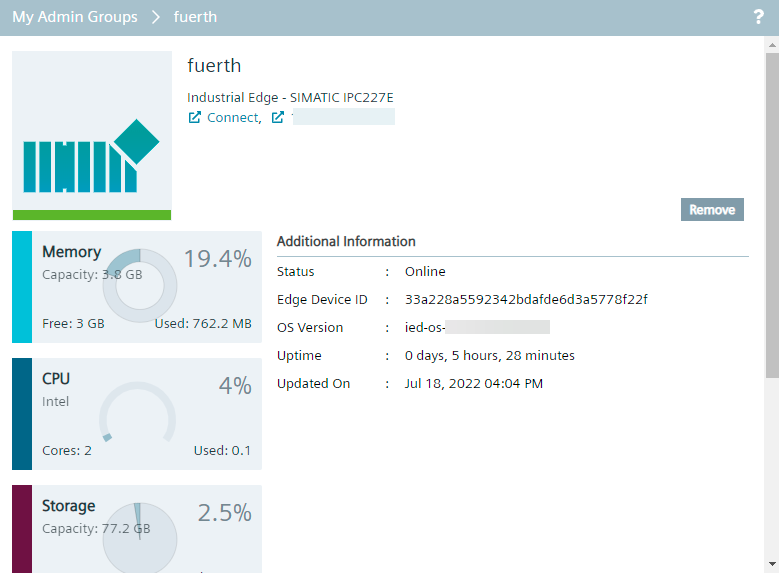
Edge Device Details
By clicking the tile of the Edge Device, the Edge Device details are displayed as follows for example: