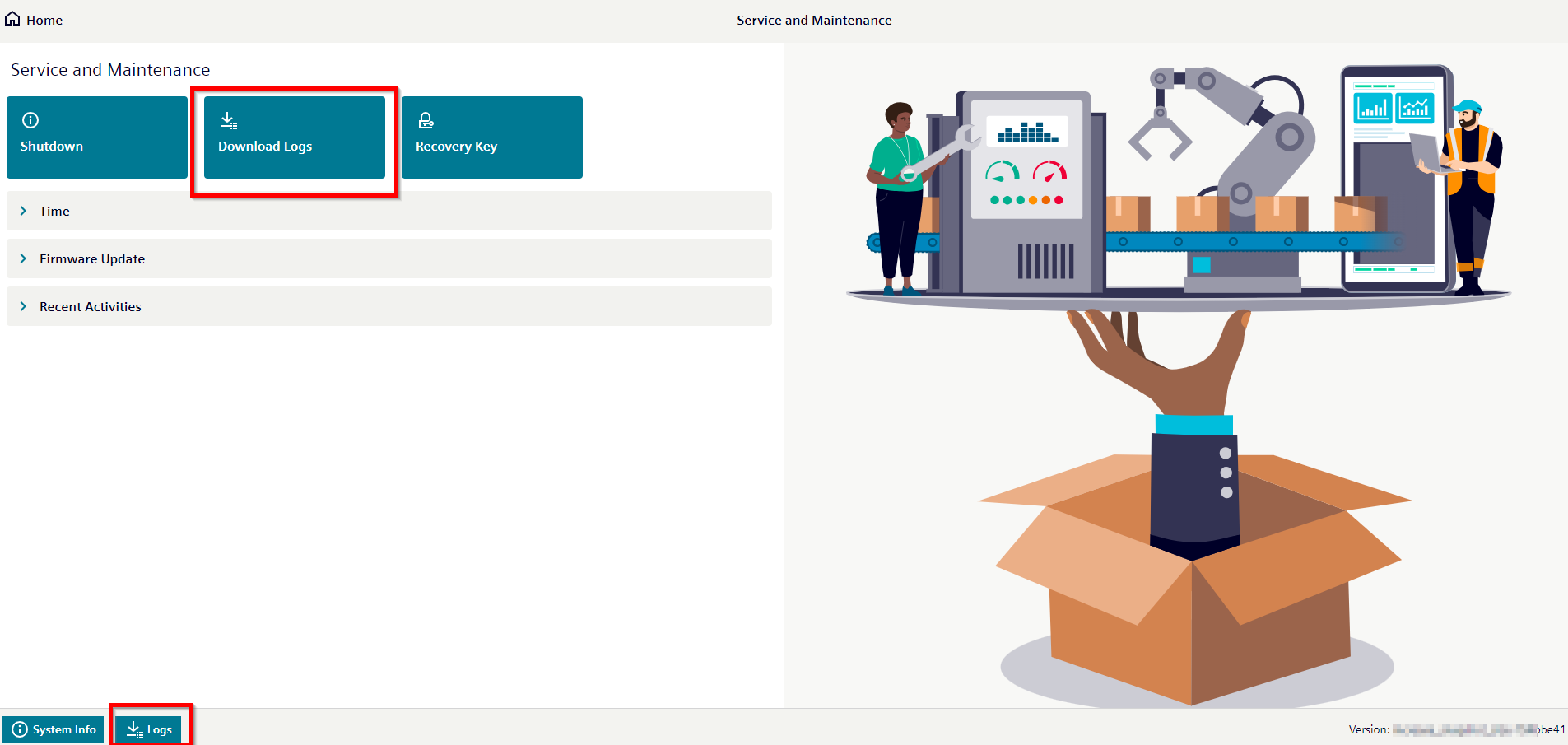
Service and Maintenance UI
From the Service and Maintenance UI user can interact with various system level configurations. Some of the available feature as of writing this doc mentioned below -
-
On the Service and Maintenance UI page, under the Download logs, user can download logs (logs are download in .tar.gz format, user need to extract first after it can able view all the logs files) of IEM Virtual.
-
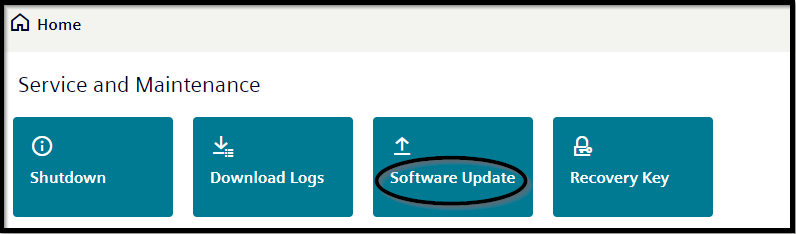
On the Service and Maintenance UI page under the Software Update, user can perform Software Update. To perform Software Update follow below page. IEM Virtual Software Update Documentation
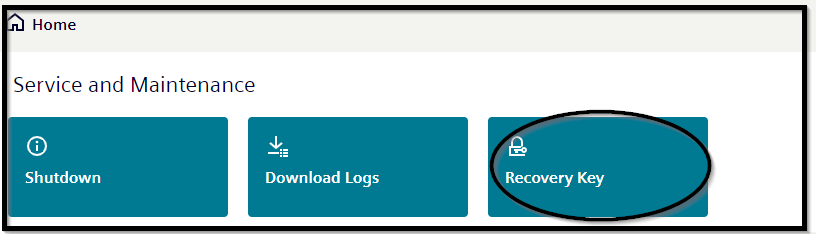
- On the Service and Maintenance UI page under Recovery Key, User can manage recovery key.
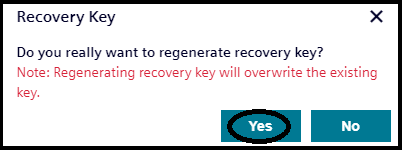
- User need to click on Yes button to regenerate key.
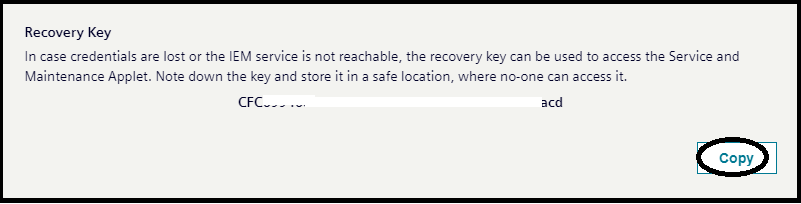
- User will get a new recovery key which can be use to login via Recovery window.
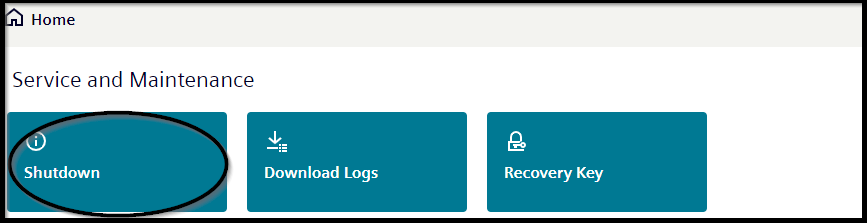
- On the Service and Maintenance UI page under Shutdown, User can shutdown the IEM Virtual.
- On the Service and Maintenance UI page under Time, User can enabled NTP and set two NTP servers in the IEM Virtual and by default NTP is set to disabled.
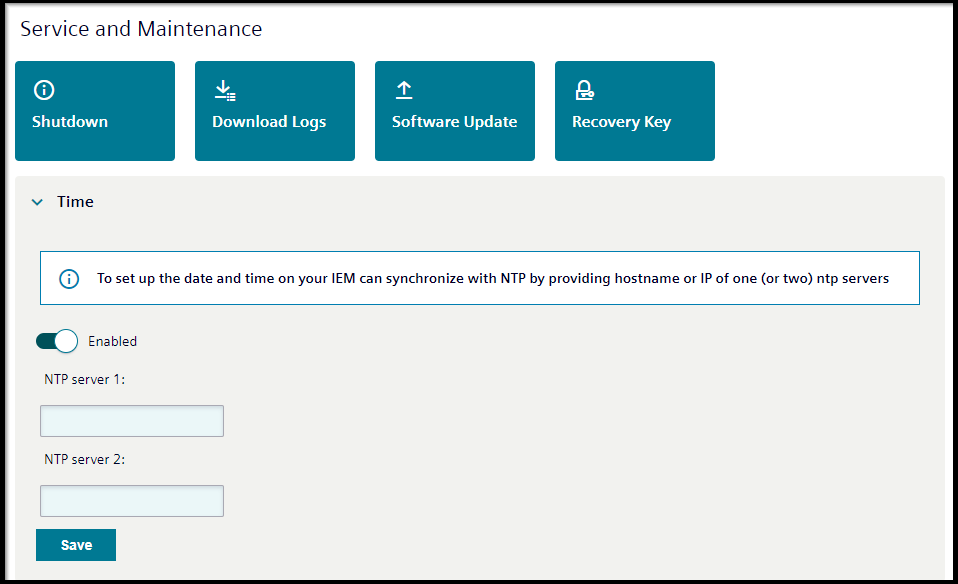
- To set up NTP in IEM Virtual, it is recommended to have at least one NTP Server configured.
- If NTP Server 1 is not reachable, the system will automatically attempt to connect to NTP Server 2.
- If both servers are unreachable, the user will receive a toast notification to inform them of the issue.
-
Users can select IEM as the NTP server to control whether the system provides the local system time to NTP clients.
-
On the Service and Maintenance UI page under Recent Activities, user will see the status after software update.

Recent activities refer to software updates. This tab displays the versions of the operating system (OS) and Industrial Edge Management(IEM). In case of a failure, it will show the corresponding error message.
Note The recent activities feature is integrated in the IEM Virtual version 2.1.0-x, so if the base version of IEM Virtual is lower then 2.1.0-x then this option will be not available in the UI when System is rollback due to Software Update failure.
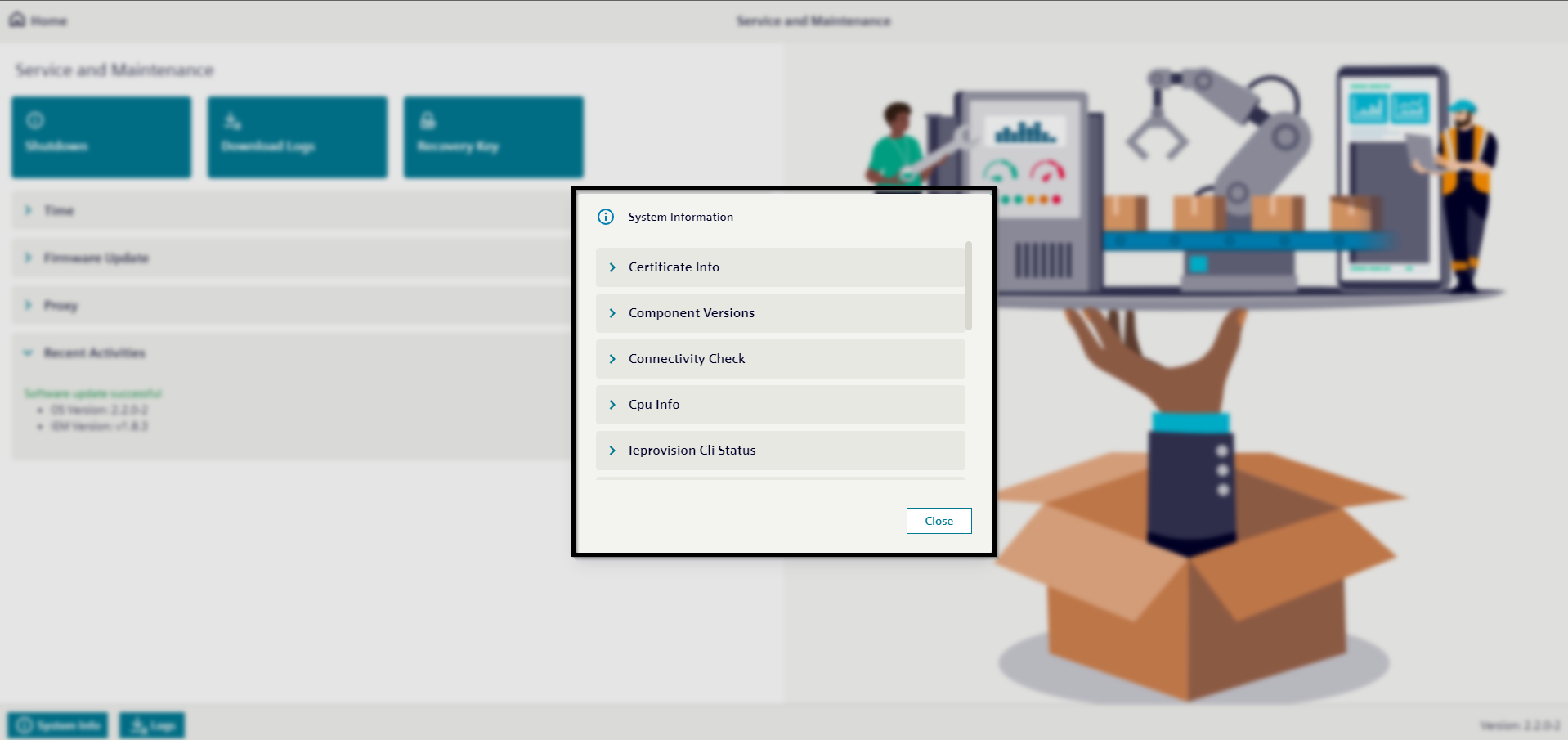
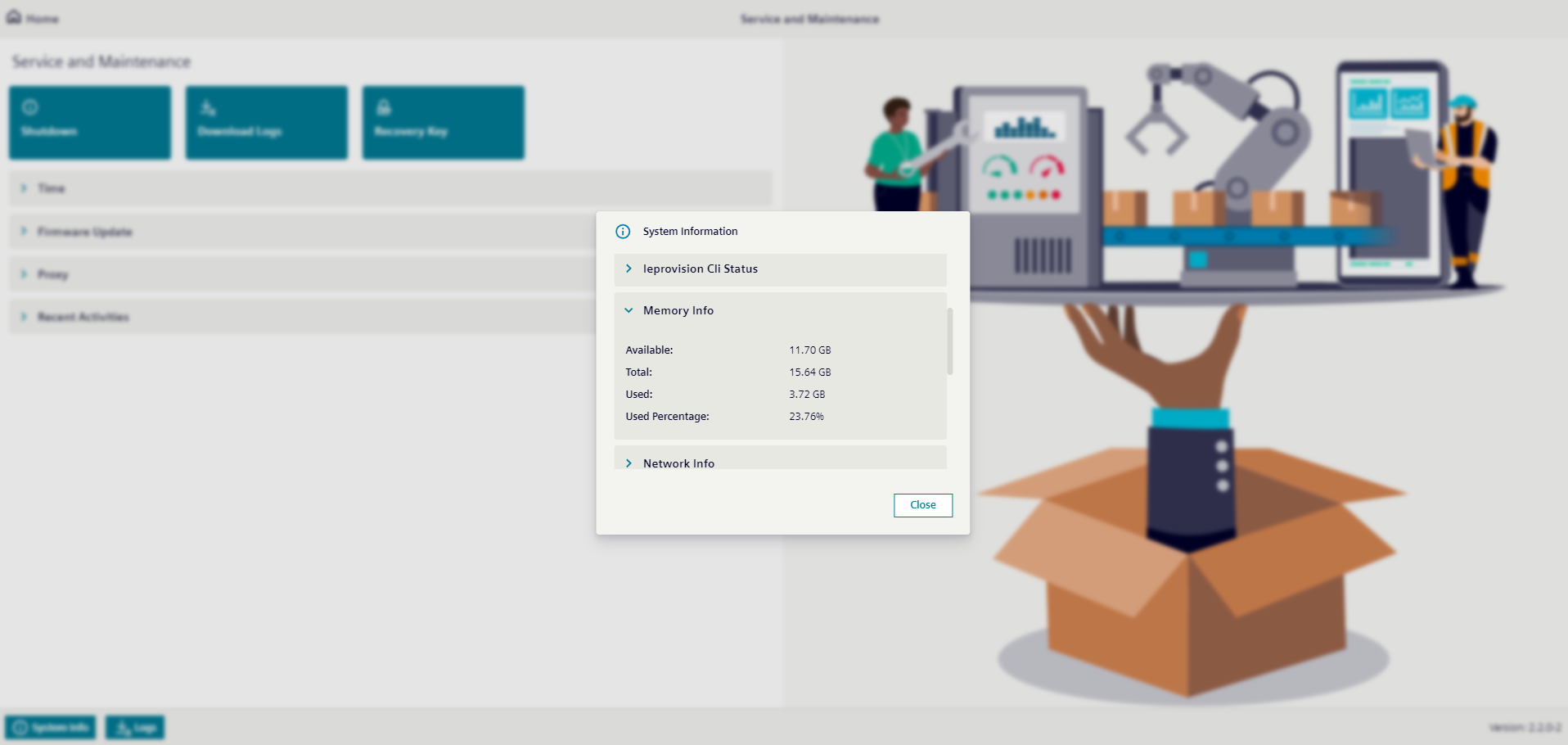
- In the footer of the Service and Maintenance UI there is a button to display System Information, where the user can see information about certificate, CPU, memory, etc.
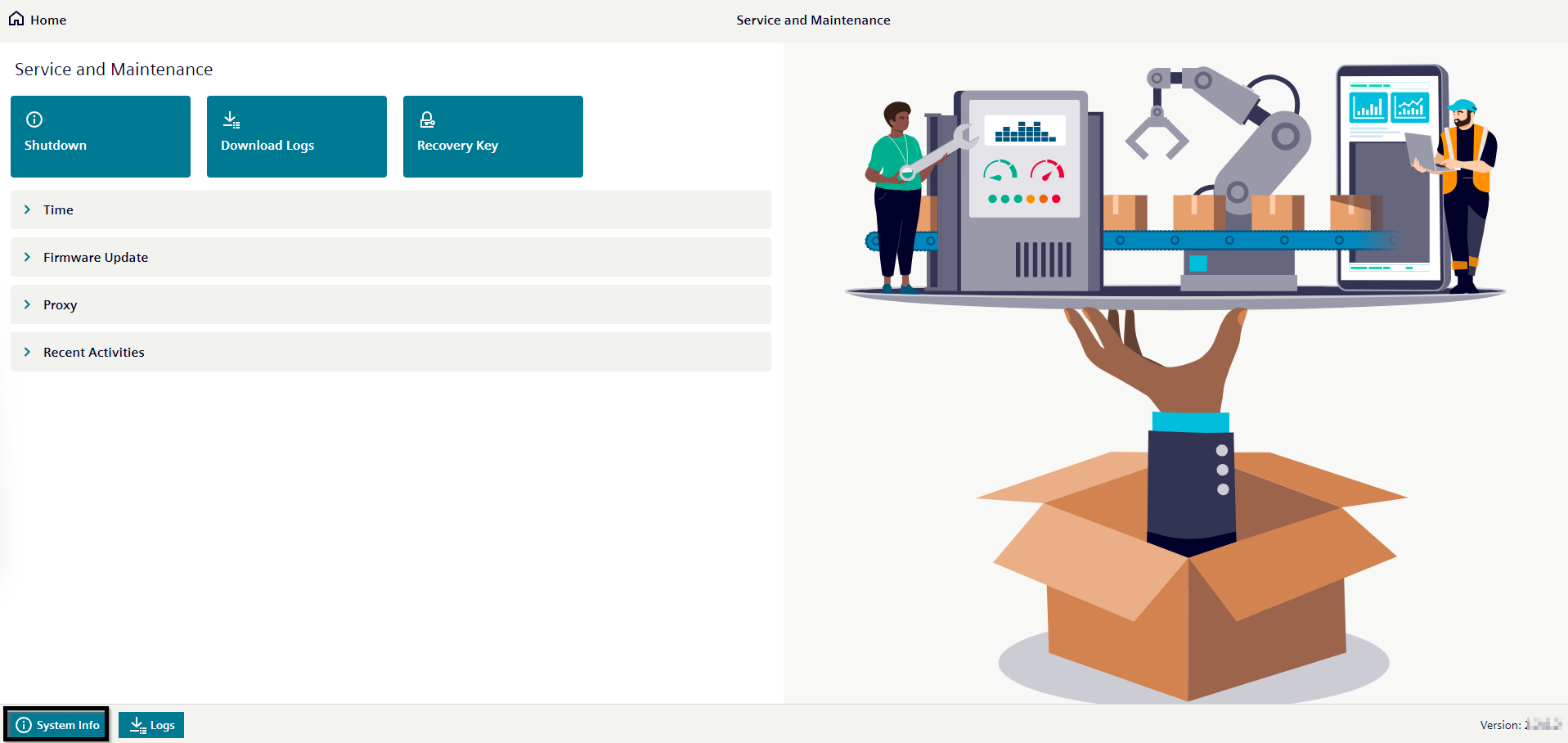
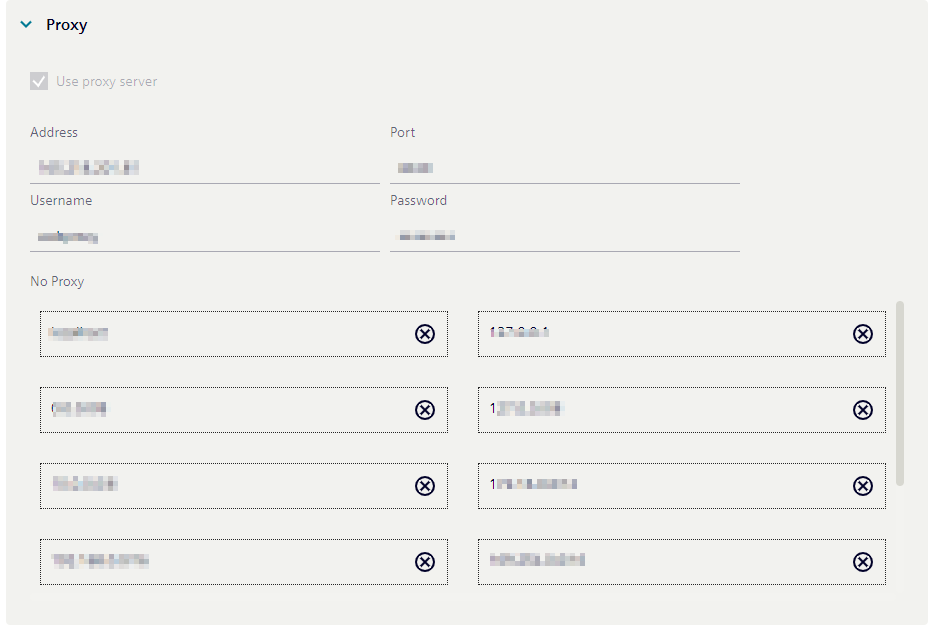
- On the Service and Maintenance UI page, under Proxy Configuration, the user can only determine if a proxy is configured in FBW; if no proxy is set up, the user cannot see any proxy information.