Reset password
If you have forgotten your password, you can set a new password through generating a temporarily password token.
Procedure
-
In the
Sign inscreen, clickForgot Password. TheForgot Passwordscreen is displayed.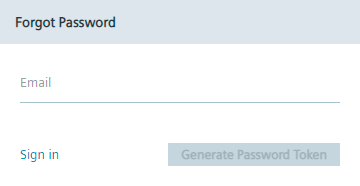
-
In the
Emailinput field, enter your email address. -
Click
Generate Password Token. A password token is generated which the admin can check underRegistered Usersin the Admin UI of the IEM. If the admin has configured an email server, you will automatically receive an email containing the password token. If the admin has not configured an email server, the admin must share the password token manually with you. TheReset Passwordscreen will be opened.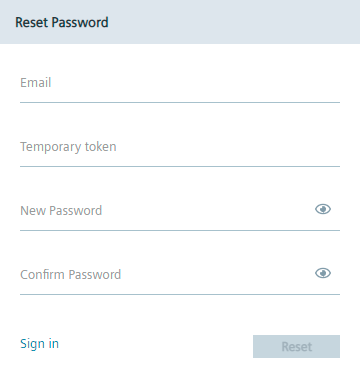
-
In case that an email server is not configured, contact the admin to receive the password token.
-
When you have received the password token, enter the following in the
Reset Passwordscreen:- Email: Your email address
- Temporary token: Generated password token
- New Password: New user password
- Confirm Password: Confirm new user password
- The new password must meet again the password criteria.
-
Click
Reset. If the password token was valid, you successfully changed your password.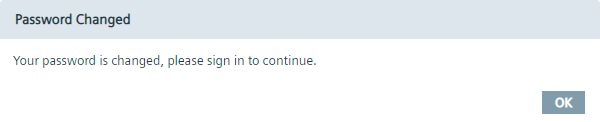
-
Click
Ok. You will be redirected to theSign inscreen.