User profile
To open your user profile, click the user icon in the top-right corner and click Profile.
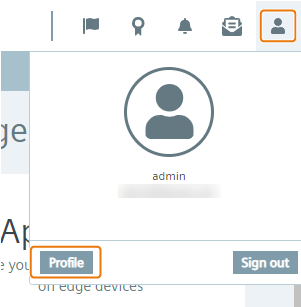
To close the user profile and return to the Mnagement UI, click Home underneath the header.
In the user profile, you have the possibility to edit the following settings:
- Profile: Editing your user profile
- Change Password: Changing your password
- Profile Picture: Setting a profile picture
- Security: Editing your multi-factor authentication
Editing your profile
In the "Profile" section, you edit the following profile parameters:
| Parameter | Description |
|---|---|
| First name | First name of the user |
| Last name | Last name of the user |
| Email of the user |
After you have updated your profile parameters, click Update to save your changes.
Changing password
-
In the
Current Passwordinput field, enter your current password. -
In the
New Passwordinput field, enter your new password. The password must meet the following criteria:- At least 8 characters
- At least 1 upper case letter
- At least 1 special character
- At least 1 number
The following characters are recognized as special characters: ! @ # $ % ^ & * . ( ) _ +
-
In the
Confirm Passwordinput field, confirm your new password. -
To save your new password, click
Change.
Setting a profile picture
-
To upload a profile picture, click the
 icon.
icon. -
Select a profile picture.
-
To save your profile picture, click
Save.
Security settings
In the Security section, you can set a multi-factor authentication through your entered email address.
A multi-factor authentication through your email address requires an email server which the admin of the IEM has configured in the Admin UI.
The admin of the IEM configures an email server in the Cloud Servers > Email Servers section in the Admin UI.