Edge Devices - Overview
The Edge Devices screen provides you an overview of all Edge Devices that are connected to your IEM and the possibility of adding new Edge Devices to the IEM.
The screen also includes all (foreign) Edge Devices from other groups that are unlocked and shared with you.
You find more information on creating groups and sharing Edge Devices with other users in the My Admin Groups subsection.
Connected Edge Devices
The layout of the Edge Devices screen varies depending on whether or not Edge Devices have already been added to the IEM.
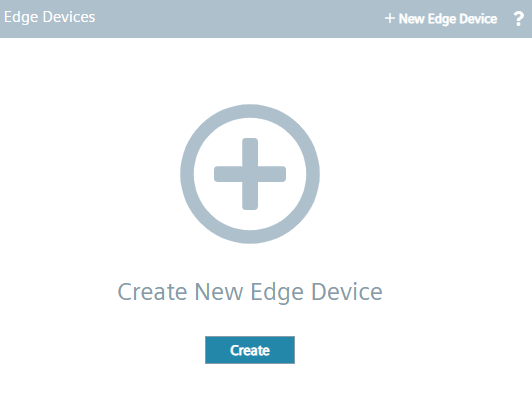
If you have added no Edge Devices yet to the IEM, the Edge Devices screen is displayed as follows:
Once you add an Edge Device to the IEM, the Edge Devices screen is displayed as follows for example:
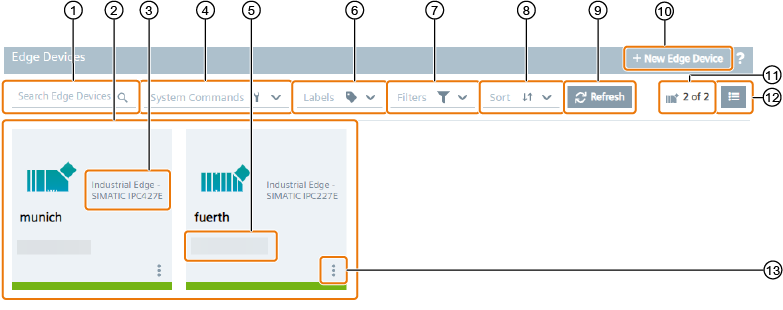
| ① | Search bar: Enter a keyword to search for within the Edge Device table |
| ② | Connected Edge Devices inclusive following information:
|
| ③ | Edge Device type |
| ④ | Refresh Edge Device screen |
| ⑤ | Edge Device system commands |
| ⑥ | Filter Edge Devices by labels or add new labels |
| ⑦ | Filter Edge Devices by your own Edge Devices or Edge Devices shared with you |
| ⑧ | Sort Edge Device table |
| ⑨ | IP address of the Edge Device |
| ⑩ | Add new Edge Devices to the IEM |
| ⑪ | Number of Edge Devices |
| ⑫ | Switch between tile and table view |
| ⑬ | Edge Device operations |
By filtering the Edge Device table (⑦) for "Authorized Edge Devices", only shared Edge Devices are displayed.
The available Edge Device operations depend on the permissions you have. The available permissions are listed in the "Roles" subsection.
Note Using a proxy server after installing the IEM When you use a proxy server to connect to the IEM after you have installed the IEM and you want to open the Edge Device UI, you must prior add the "Edge Management URL" and "Edge Management Hub URL" name of the IEM to the no proxy address list in the Maintenance UI settings. Otherwise, an error occurs displaying that the Edge Device is temporarily unavailable.
Edge Device Details
By clicking the tile of the Edge Device, the Edge Device details are displayed as follows for example:
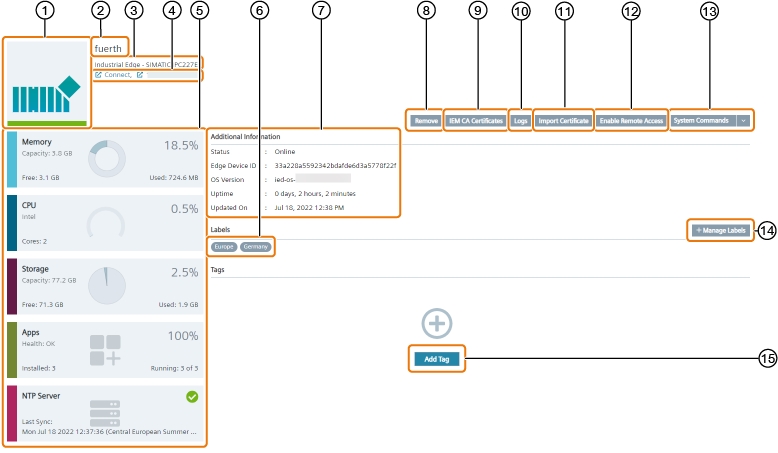
| ① | Edge Device type icon |
| ② | Edge Device name |
| ③ | Edge Device type |
| ④ | Open Edge Device UI |
| ⑤ | Edge Device statistics |
| ⑥ | Assigned labels |
| ⑦ | Additional Information |
| ⑧ | Remove Edge Device from the IEM |
| ⑨ | Download IEM CA certificates |
| ⑩ | Download Edge Device logs |
| ⑪ | Import certificates |
| ⑫ | Enable remote access |
| ⑬ | Edge Device system commands |
| ⑭ | Manage labels |
| ⑮ | Add tags |
Information needed
Do we need to change the screenshot accordingly?